Set Up PolyPDF Collaboration Beta
Quick answer
Install the customer-owned Collaboration Host on your private network, mount the same company PDF share on each computer, and give employees the nonsecret company connection file. The first Owner enrolls with a single-use invitation and approves later devices as Owner, Editor, or Viewer. Approved users open the same PDF to exchange live cursors and markup transactions; short offline interruptions queue encrypted changes for ordered replay.
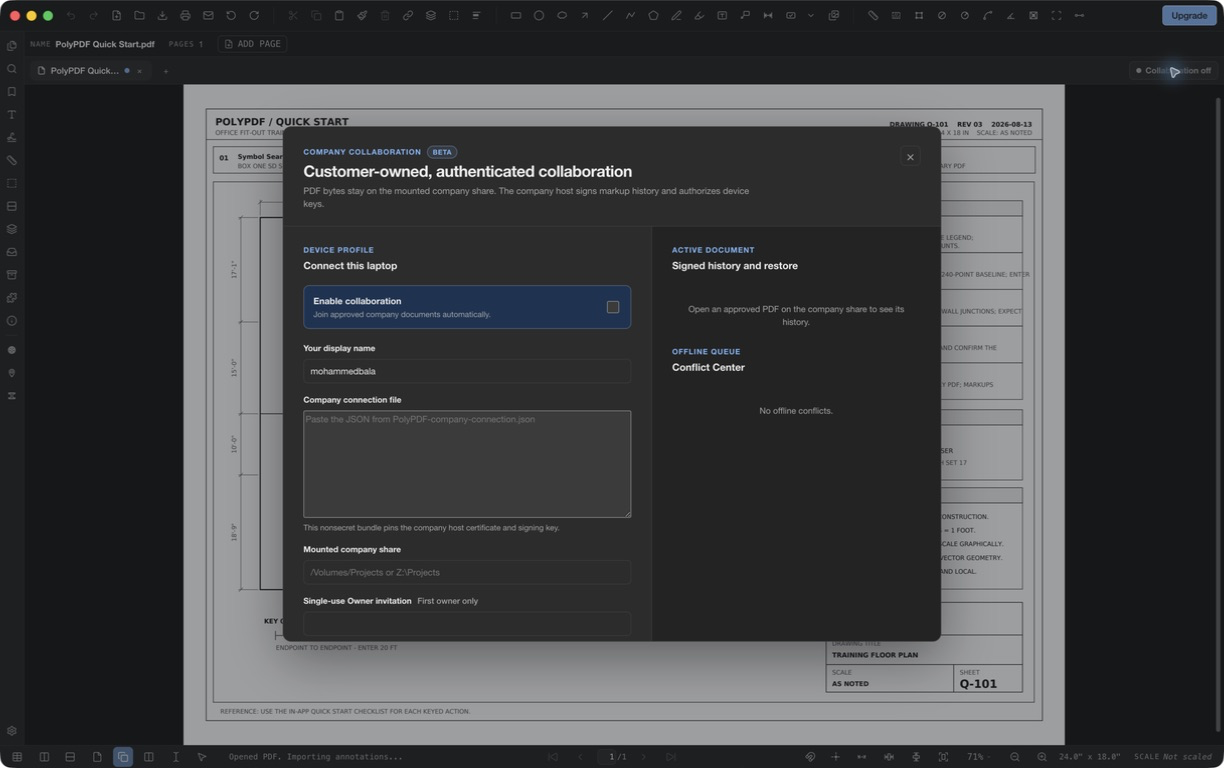
Collaboration Beta lets approved Mac and Windows users work in the same shared PDF without uploading the drawing to a PolyPDF cloud account. This guide covers the company host, first connection, daily workflow, and beta safeguards.
- Release review
- Aligned with PolyPDF 1.5.1 (build 23) on . Earlier walkthroughs and screenshots retain their versions below.
- Walkthrough verified
- Tested with
- PolyPDF 1.5.0 (build 22) Collaboration Beta; screenshot from 1.4.3 (build 20)
- Platforms
- macOS and Windows clients; Windows Server 2022 host
What customer-owned collaboration means
The PDF stays on the file share your company already controls. Each employee opens that shared file through their normal mounted path — for example, /Volumes/Projects on a Mac or Z:\Projects on Windows. A small Collaboration Host on your network approves devices, orders markup changes, signs history, and coordinates saves.
PolyPDF does not host the drawing or require a PolyPDF cloud account. The host stores collaboration records in a protected hidden folder beside the company share. Ordinary users should have normal PDF access but must not be able to modify that hidden collaboration folder directly.
This is a beta. Start with a pilot folder and backed-up copies of real project PDFs. Keep the Collaboration Host on a private company network or VPN; do not expose its port directly to the public internet.
1. Have an administrator install the company host
The normal beta path is the Windows Server installer. It creates the host identity and pinned TLS certificate, registers an automatic Windows service, applies local-share permissions, and produces the two files used to enroll employees.
Run it as an administrator on Windows Server 2022.Download the Windows Server Collaboration Host (Beta)
The installer produces two different files
- PolyPDF-company-connection.json is safe to distribute to employees. It identifies the host and pins its certificate and signing key.
- PolyPDF-owner-bootstrap.invitation.json is secret and single-use. Give it only to the person who will enroll the first Owner, then delete it after that Owner connects.
Linux host packaging is available for managed beta pilots.Ask about the Ubuntu / Docker host
2. Connect the first Owner
- Install the current PolyPDF release on the Owner’s Mac or Windows computer and mount the company PDF share.
- Open a PDF, then click Collaboration off in the title bar.
- Turn on Enable collaboration and enter the Owner’s display name.
- Open PolyPDF-company-connection.json in a text editor and paste its full JSON into Company connection file.
- Enter the local mounted-share path in Mounted company share. Paths can differ by computer as long as they point to the same share.
- From the private Owner invitation, paste only the bootstrapToken value into Single-use Owner invitation.
- Choose Test host. When the connection succeeds, choose Save and connect.
The first Owner invitation is a recovery-sensitive credential. Do not email it to the whole team, store it beside the public connection file, or reuse it for later employees.
3. Add Editors and Viewers
Every additional user follows the same connection steps but leaves the Owner invitation blank. Their status changes to Approval pending. The Owner opens the Collaboration panel, finds the request under Members, and approves the device as an Owner, Editor, or Viewer.
- Owner: approves or revokes devices, restores signed history, and handles externally replaced PDFs.
- Editor: adds and changes shared markups and participates in controlled saves.
- Viewer: joins the room and sees live activity without publishing markup changes.
Approval belongs to that device key, not just a typed name. If a laptop is lost or leaves the company, an Owner can revoke it from Members and the host disconnects it.
4. Open the same PDF and work normally
When approved users open the same PDF from the configured share, the title-bar status changes from Collaboration ready to Live · 2 (or the current participant count). Remote pointers appear over the page with each person’s name, and accepted markup changes arrive without passing the PDF file back and forth.
Collaboration covers the review workspace: annotations, layers, spaces, scale regions, measurement settings, custom fields, and Markups-list state. Forms, signatures, attachments, page structure, and underlying PDF content remain outside the live collaboration record.
5. Keep working through a network interruption
If the VPN or host connection drops, the status changes to Offline and shows how many encrypted changes are queued on that computer. Continue marking up the drawing. After the connection returns, PolyPDF authenticates again and submits the queued transactions in order.
Offline support protects short interruptions; it is not a substitute for backups or a long-lived disconnected branch. Reconnect and confirm the queue reaches zero before closing out a review session.
6. Resolve a same-markup conflict
Independent markups merge normally. A conflict is raised only when two offline branches changed the same markup version. Click the conflict count in the title bar and open Conflict Center. For each conflict, choose Use server version or Create mine as a copy.
Create mine as a copy preserves the local work as a separate markup instead of silently overwriting someone else. PolyPDF does not guess which same-object edit was intended.
7. Save the shared PDF
Live markup history and the PDF bytes are separate until someone saves. When an approved user chooses Save, the host grants one exclusive save lease, brings that client to the latest accepted state, and records the sequence embedded in the PDF. A second simultaneous save waits or is refused instead of racing the same file.
Save As creates a new file and detaches the original collaboration room. Opening that new shared file creates its own collaboration identity and history.
8. Use signed history and handle outside changes
The Collaboration panel lists accepted transactions with sequence number, author, time, and a host signature. An Owner can restore an earlier sequence. Restore is recorded as a new compensating transaction, so later history is not erased or rewritten.
If another program replaces the shared PDF outside a controlled PolyPDF save, the room pauses instead of applying history to bytes it no longer recognizes. An Owner must inspect the file and either acknowledge the outside change or relink the room to the correct share-relative PDF.
What we need from beta teams
Tell us about confusing enrollment steps, VPN and sleep/wake behavior, conflicts that do not explain themselves, and file-server environments that are difficult to configure. Include the operating systems, host platform, and exact status message — never send a confidential drawing unless your organization has approved it.
Email support@polypdf.com.Send Collaboration Beta feedback
Frequently asked questions
Does PolyPDF upload collaboration PDFs to the cloud?
No. The PDF stays on the customer’s mounted company share. A customer-owned host on the private network authenticates devices, signs transaction history, coordinates saves, and stores collaboration records.
Can Mac and Windows users collaborate on the same PDF?
Yes. Each computer may use a different local mount path, but both paths must resolve to the same configured company share and share-relative PDF.
What happens when two people edit the same markup offline?
PolyPDF opens Conflict Center and asks the user to keep the server version or preserve the local edit as a separate copied markup. It does not silently choose a winner.
Try this workflow on your own drawings
Install the latest PolyPDF update on each client, then pilot Collaboration Beta on a private company network with backed-up project files.