Create Interactive PDF Review Stamps
Quick answer
Open a PDF, open the arrow beside Stamp, and choose Create Interactive Stamp… Start with the empty canvas, add fields, set their values and appearance, and arrange them in the preview. Leave Add to toolset unchecked for a one-off stamp, or check it to save a reusable template. Choose Insert on Page, click the drawing, complete the placement prompt, and choose Place Stamp.
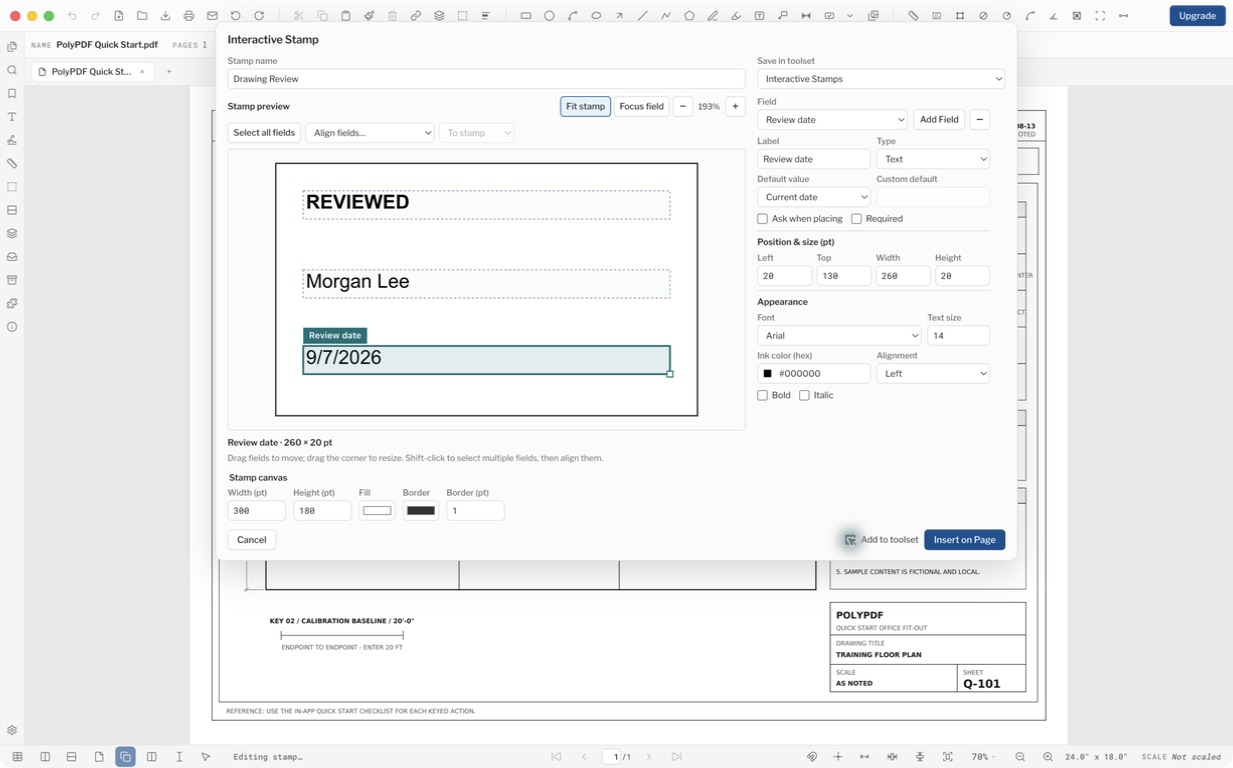
A review stamp can keep a fixed heading while asking for a different reviewer on every placement. This example builds a simple REVIEWED stamp with a reviewer and an automatic date on the sample drawing included with PolyPDF.
- Release review
- Aligned with PolyPDF 1.5.1 (build 23) on .
- Walkthrough verified
- Tested with
- PolyPDF 1.5.1 (build 23); screenshots from the signed macOS release
- Platforms
- macOS and Windows
Start with a blank canvas
- Open the PDF that will receive the stamp.
- Open the arrow beside the Stamp toolbar button and choose Create Interactive Stamp…
- Give the stamp a useful name. Set Width (pt), Height (pt), fill, border color, and border width for the canvas you need.
- Choose Add Field to start the layout. A new stamp needs at least one field before it can be inserted.
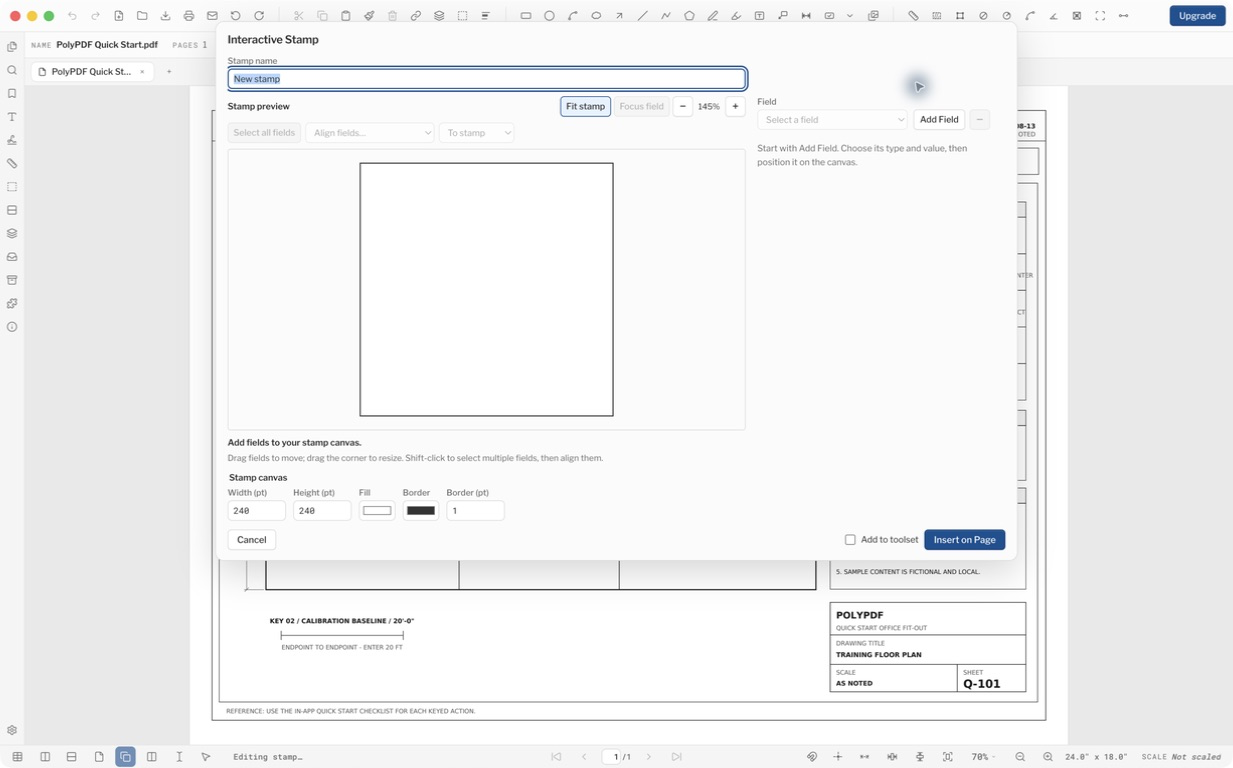
The canvas dimensions are PDF points, not the calibrated real-world units of the drawing. A rectangular review stamp is simply a canvas with different width and height values.
Give each field a clear job
Select a field to edit its Label, Type, default value, placement behavior, position, size, font, ink color, alignment, bold, and italic settings. Labels identify the field in the editor and placement prompt; the field value is what appears in the stamp.
| Field | Value | Ask when placing |
|---|---|---|
| Review status | Custom value: REVIEWED | Off; this heading stays fixed |
| Reviewer | Custom value: Morgan Lee for this sample | On, with Required checked |
| Review date | Current date | Off; refreshed automatically |
For your own template, leave the reviewer default empty when every placement should require a fresh answer. Use Required for a prompted value that must be filled before placement.
Default value can use a custom value, current user, current date, current time, document name, or page number. Automatic values are resolved for each new placement; they are not a promise that an already placed stamp will change later.
Arrange and inspect the artwork
- Drag a field in the preview to move it; drag its corner handle to resize it.
- Use Left, Top, Width, and Height for precise positions in PDF points.
- Use Select all fields and Align fields… to align or distribute a group. Check whether alignment is relative to the stamp or the selection.
- Use Focus field for close inspection and Fit stamp to check the complete layout.
- Allow room for longer names and multiline answers. A preview with a short sample value does not establish that every future answer will fit.
Selection outlines, field labels, and resize handles belong to the editor. They are not part of the stamp that is placed or saved into the PDF.
Choose one-off placement or a reusable tool
Leave Add to toolset unchecked when you only need this stamp once. Check it when you want a reusable definition; Save in toolset then appears so you can choose its destination.
- Choose Insert on Page.
- Click the intended location on the PDF.
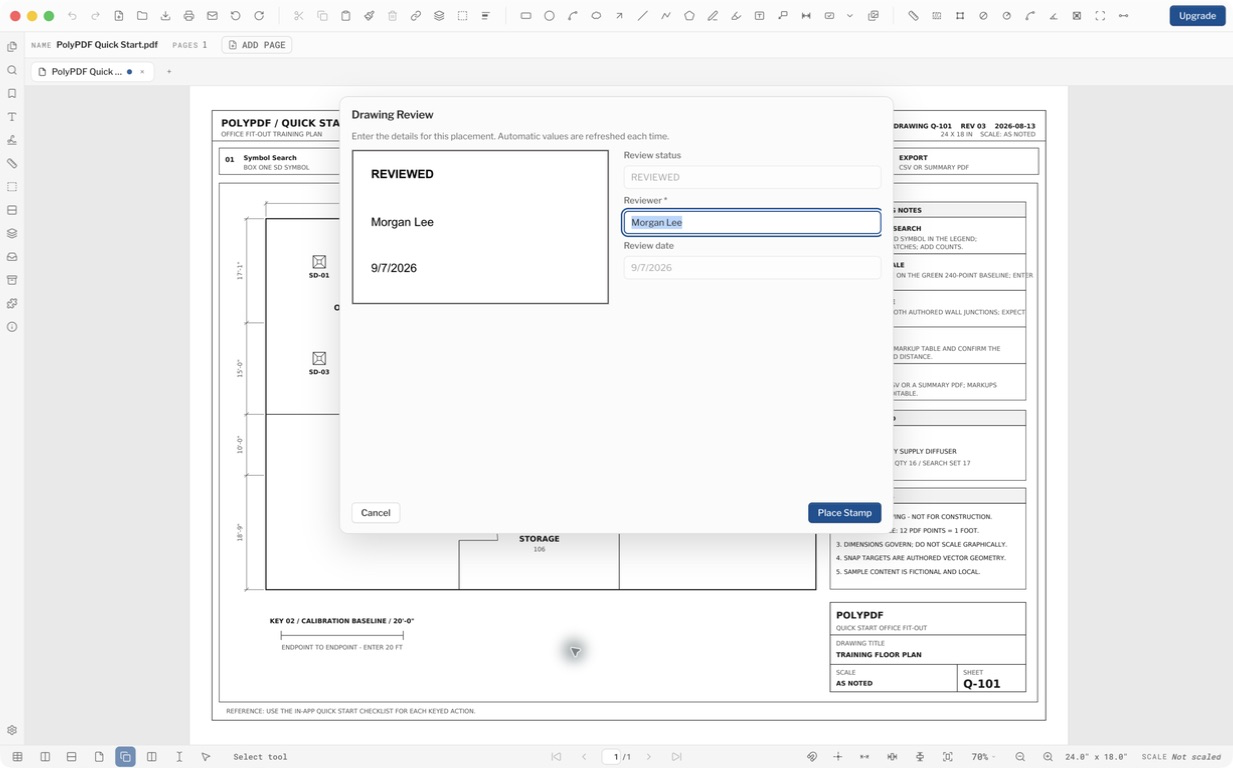
- Review the values shown in the placement dialog. Fill every required prompted field.
- Choose Place Stamp. Inspect the result and move or resize it as needed.
- For another placement of a saved template, select it from the Stamp menu or its toolset and enter the new placement details.
Save, reopen, and check the delivered PDF
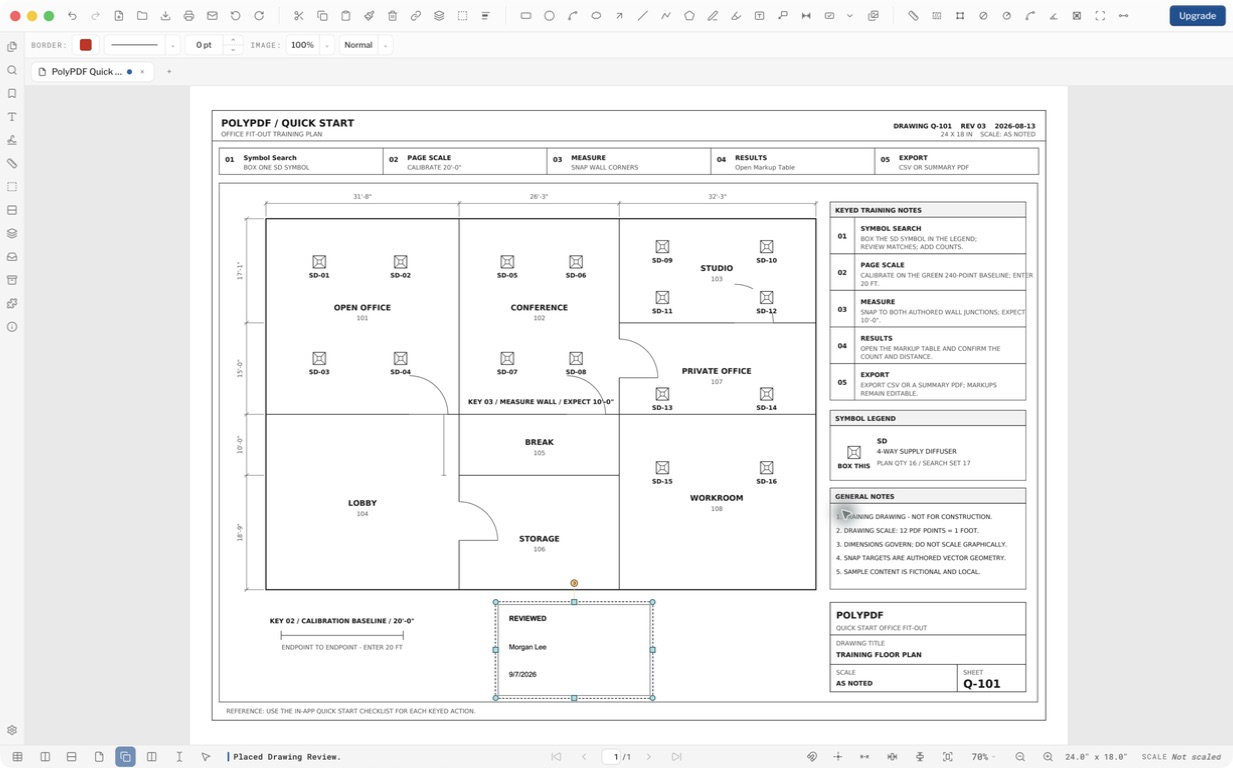
Save your working copy, close it, and reopen the saved file. Check the text, size, orientation, and position. Open the same saved PDF in the viewer your recipient uses before relying on a project-specific exchange workflow.
Use Properties to edit the values of a placed interactive stamp in PolyPDF. Editing a saved template changes future placements; it does not rewrite every stamp you have already placed. A recipient can view the saved appearance in a PDF viewer, but the PolyPDF template editor is not a cross-application feature.
An interactive review stamp is visual annotation artwork. It does not create a certificate signature, execute imported PDF JavaScript, or calculate arbitrary stamp formulas. Certificate-backed signing remains a separate workflow.
Frequently asked questions
Does a new stamp copy the open PDF page?
No. Create Interactive Stamp starts with an empty canvas and no fields. It does not copy the page, selected artwork, or form fields from the PDF.
Do I have to save every stamp to a toolset?
No. Add to toolset is unchecked by default. Leave it off for a one-off placement, or turn it on and choose a destination for a reusable template.
Can I use a different reviewer and date for each placement?
Yes. Turn on Ask when placing for the reviewer, and choose Current date for the date field. Automatic values refresh for each placement; existing stamps retain their saved values.
Is a review stamp a digital signature?
A review stamp supplies visible artwork and field values. It does not create a certificate-backed signature or prove who approved the drawing. Use the separate digital signature workflow when cryptographic verification is required.
Sources and further reading
- PolyPDF 1.5.1 release notes — Interactive stamps shipped for Mac and Windows in version 1.5.1, build 23.
Try this workflow on your own drawings
PolyPDF is a free download on Mac and Windows. Open your own PDFs, use the markup tools, and place up to 3 hand-created measurements per document before you decide whether to buy.
Free with no trial timer: markup, review, calibration, 3 hand-created measurements per document, and Revision Package viewing. Symbol Search, plugins, and Revision Package changes or publishing require Pro.