Introducing PolyPDF Plugins
Quick answer
PolyPDF plugins are Pro workflows built from declarative packages rather than executable-code extensions. PolyPDF renders their forms and runs a fixed host-owned generator against bounded data or sanitized artwork. Three generators come with the app and are enabled on first run: AISC Steel Sections draws steel section profiles as vector geometry, Professional Seal Maker composes a seal graphic from a jurisdiction template, and PDF Maps places a map image for an address or place name.
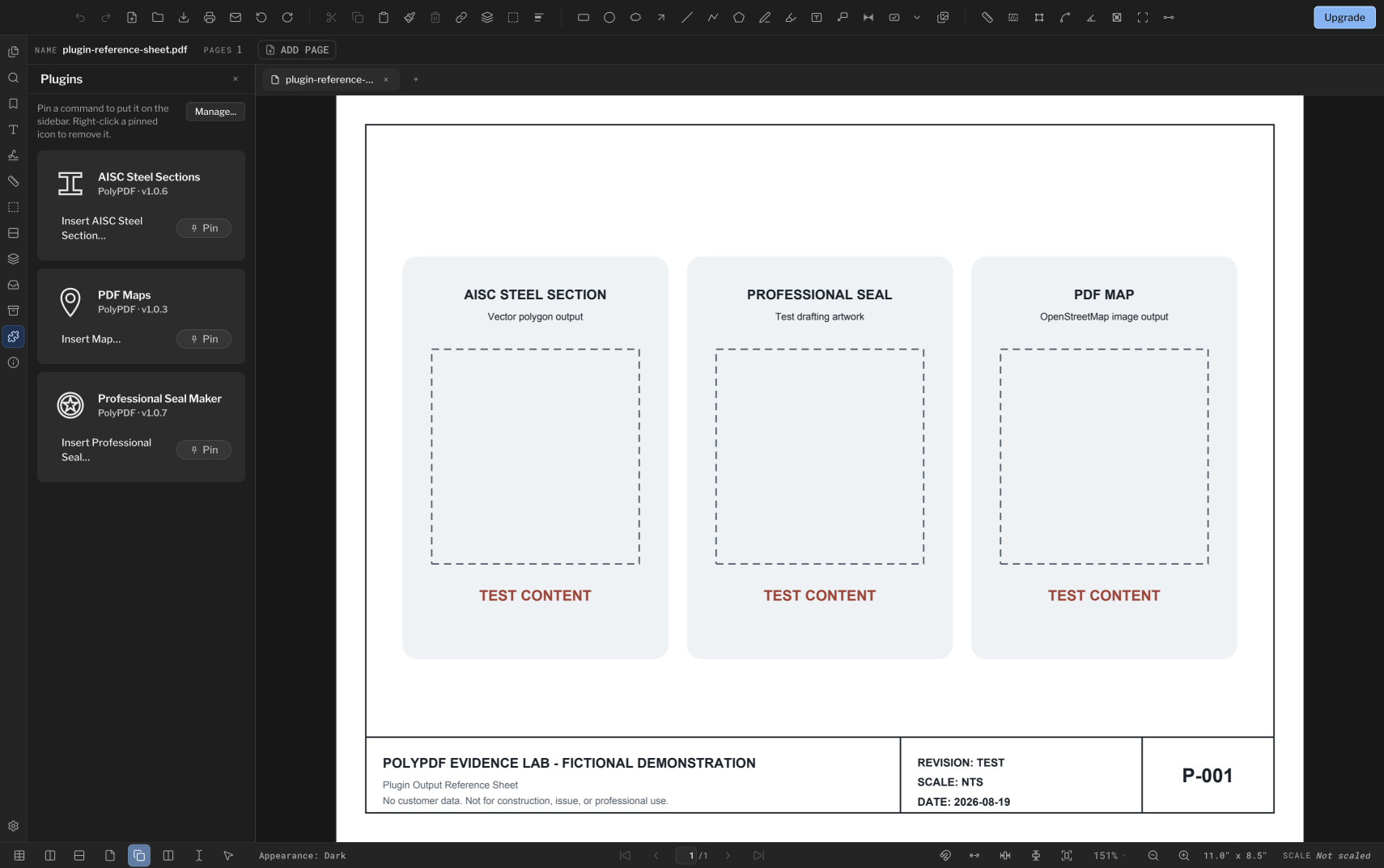
Plugins add content generators without executing downloaded plugin JavaScript. This article walks through the interface and the three generators included with PolyPDF Pro.
- Release review
- Aligned with PolyPDF 1.5.1 (build 23) on . Earlier walkthroughs and screenshots retain their versions below.
- Walkthrough verified
- Tested with
- PolyPDF 1.5.0 (build 22); screenshots from 1.4.0 (build 17)
- Platforms
- macOS and Windows
Where this starts
PolyPDF is a desktop app for people who work from PDF drawings rather than CAD files — solo engineers, architects, estimators, and the small teams around them. Its core document, markup, measurement, and export work happens locally on Mac and Windows. Maps, license activation, updates, purchases, and support can require a connection.
That local-first shape sets the constraints for anything we add. Plugins were designed inside it: packages carry signed data and artwork, not downloaded executable code or a subscription service.
Current access: installing, running, and editing plugin content requires PolyPDF Pro. Content already placed on a PDF remains ordinary document content.
What a PolyPDF plugin is — and is not
A plugin package can carry data tables, sanitized SVG or PNG artwork, and a declarative description of the form the user fills in. It does not carry executable plugin JavaScript. The package names one of PolyPDF's fixed, host-owned generators and supplies bounded input for that generator.
That design narrows the attack surface; it does not make an arbitrary file harmless. A package can still contain structured values, labels, options, and graphics. PolyPDF therefore validates the archive and manifest, sanitizes supported artwork, enforces declared permissions, and validates the annotations and image assets produced by its own generator before anything is inserted.
What is verified before a package is installed
- Bundled and catalog-delivered packages use an Ed25519 signature over a SHA-256 digest covering every file, plus a separate SHA-256 check on each file.
- A catalog install is accepted only when the signed catalog pins the package checksum. A file the user selects directly can instead be self-signed; the consent screen identifies that source and pins the author key after approval.
- A strict layout allowlist — a package may contain only a manifest, a form schema, a signature, and data, asset, and icon folders. Anything else is refused.
- Path-safety and symlink checks that reject traversal, absolute paths, and duplicate entries.
- Size caps on the archive, on each member, and on the number of members.
The permission model
A plugin declares which of three permissions it needs: read the current document context, create annotations, and create image assets in the workspace. The detail or sideload-review view lists them in plain language. A generator result outside those permissions is rejected.
The generator dialog is drawn by PolyPDF from the plugin's form schema. The plugin describes the fields; the app renders them. Nothing in a package controls the interface directly.
The Plugin Manager and Plugins sidebar
Plugins are managed in one Plugins window, which shows a single list of the packages PolyPDF carries and any you installed yourself. A detail page shows publisher, installed version, permissions, commands, compatibility, package source and size, release notes when present, and whether the plugin is enabled.
- Enable, disable, uninstall, and roll back an available previous version from the same window.
- Install from File… opens a consent review for a package the user deliberately selected, including its source, signer, permissions, and downgrade or reinstall context.
- A consented sideload can reinstall the same version or install an older one; the review screen tells you which is about to happen before you approve it.
- Uninstalling a plugin does not touch content it already generated — that content is part of your document, not part of the plugin.
PolyPDF carries three first-party generators and enables them on first run. “Check for updates” appears only when a build has an update source configured; the ordinary shipping configuration has no Discover, Installed, or Updates tabs and no catalog-refresh action.
There is no marketplace or public submission directory. Install from File… is the explicit path for a user-chosen third-party package, and its consent screen distinguishes that package from software PolyPDF supplied.
AISC Steel Sections
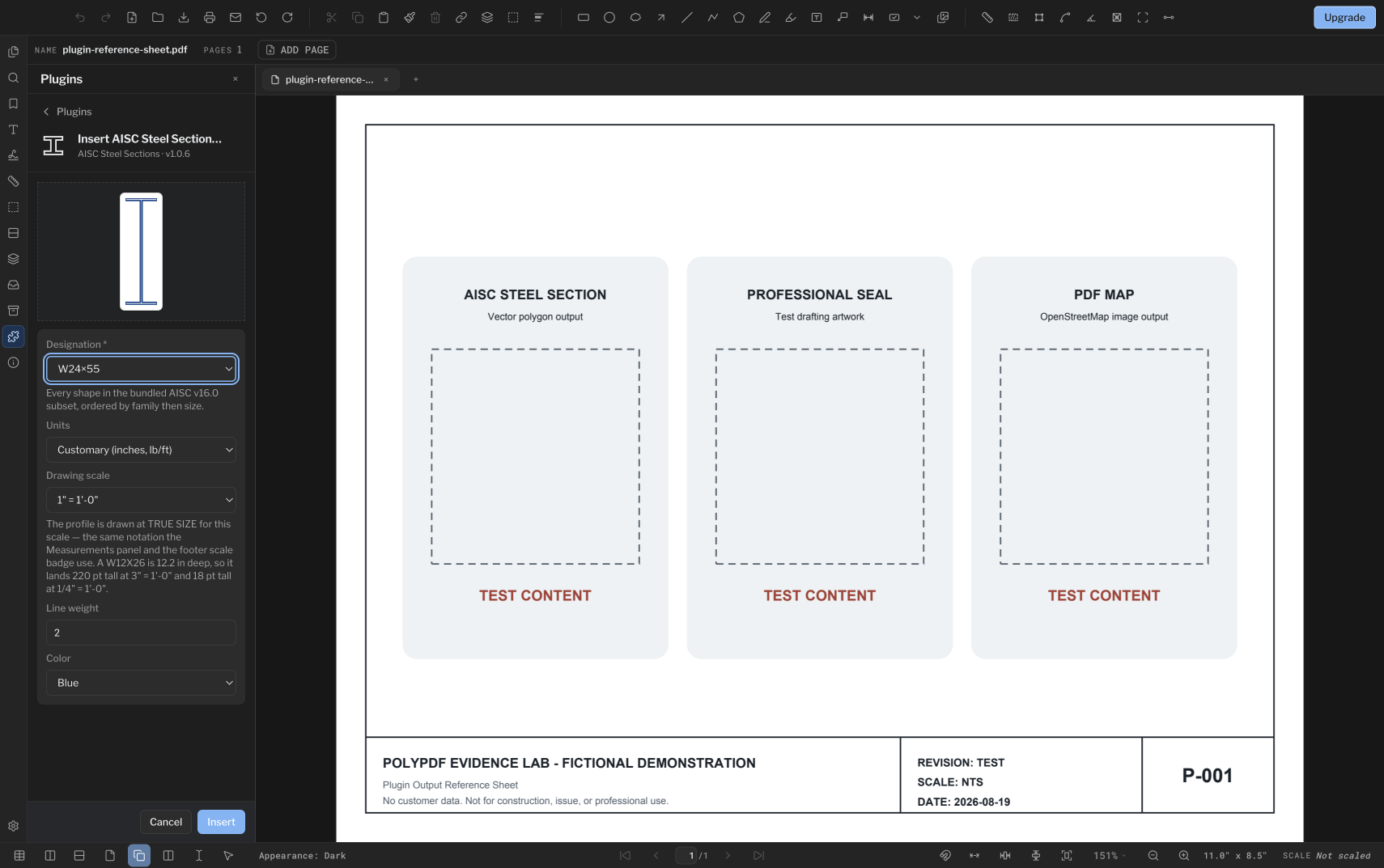
Type a supported designation — for example W24X55, L6X6X1/2, HSS8X8X1/2, or PIPE6 — pick customary or metric units and an annotation scale, and PolyPDF draws the section profile onto the sheet.
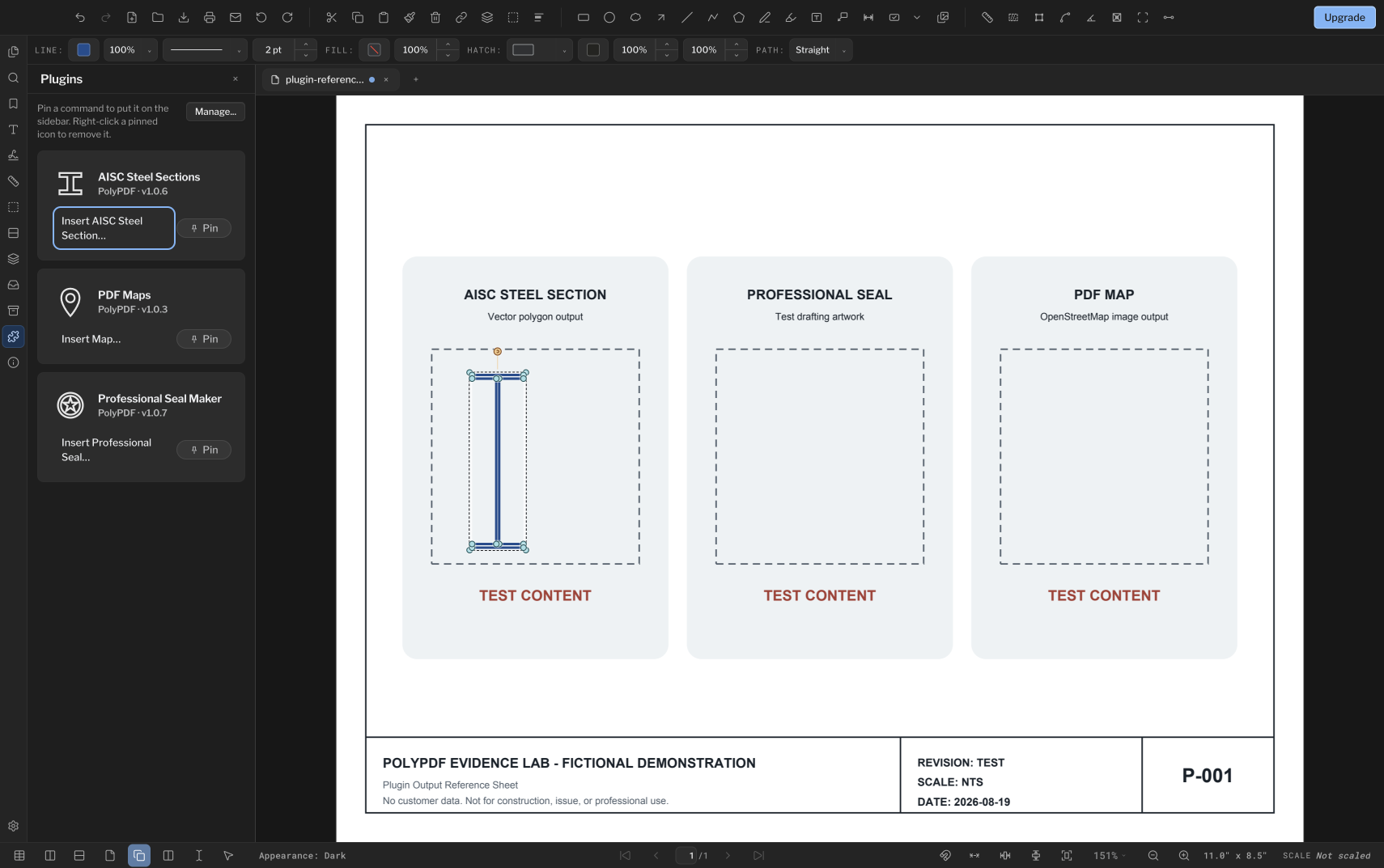
The profile is real vector geometry, placed as a Polygon annotation rather than a pasted bitmap: it stays sharp at any zoom and prints at the size you asked for. Hollow shapes such as HSS and Pipe are drawn with their inner loop, so the wall thickness is the actual wall thickness.
AISC Steel Sections draws section profiles. It performs no capacity, code, or design checks. The bundled data is a curated 57-shape subset across the W, M, S, HP, C, MC, L, WT, HSS, HSS-Round, and Pipe families rather than the complete database, so check any designation against an authoritative reference before it drives a design decision.
Professional Seal Maker
Choose Professional Engineer or Architect, choose a jurisdiction — the 50 states and the District of Columbia — fill in the fields that jurisdiction's template asks for, and watch the seal build in the live preview before you insert it.
The output is a graphic generated from a template. It is not a cryptographic signature, and inserting one does not sign the document. PolyPDF's digital signature tools are separate, and if you need a signature a verifier can check, that is the path to use.
A seal from Seal Maker is graphic artwork, not a cryptographic digital signature. PolyPDF does not check license status and does not confirm that a template matches your board's current requirements. The licensed professional whose name appears on a seal remains responsible for its appearance, wording, and use.
PDF Maps
Enter an address, city, or place name, set a zoom level from world view to building level, and insert a map image on the page. Inside PolyPDF the result stays adjustable: double-click it to pan and zoom in a small editor and save the view. In other PDF viewers it is a plain image.
Place searches are geocoded through Nominatim at openstreetmap.org. The image itself is rendered from OpenFreeMap vector tiles using the OpenMapTiles schema. PolyPDF bakes “OpenFreeMap © OpenMapTiles Data from OpenStreetMap” into the generated image—or a shorter layout form when space requires it—so the credit travels with the PDF.
PDF Maps needs an internet connection while it resolves a place and renders OpenFreeMap tiles. Once inserted, the result is a self-contained image annotation that stays with the PDF.
A related built-in reference tool: MUTCD signs
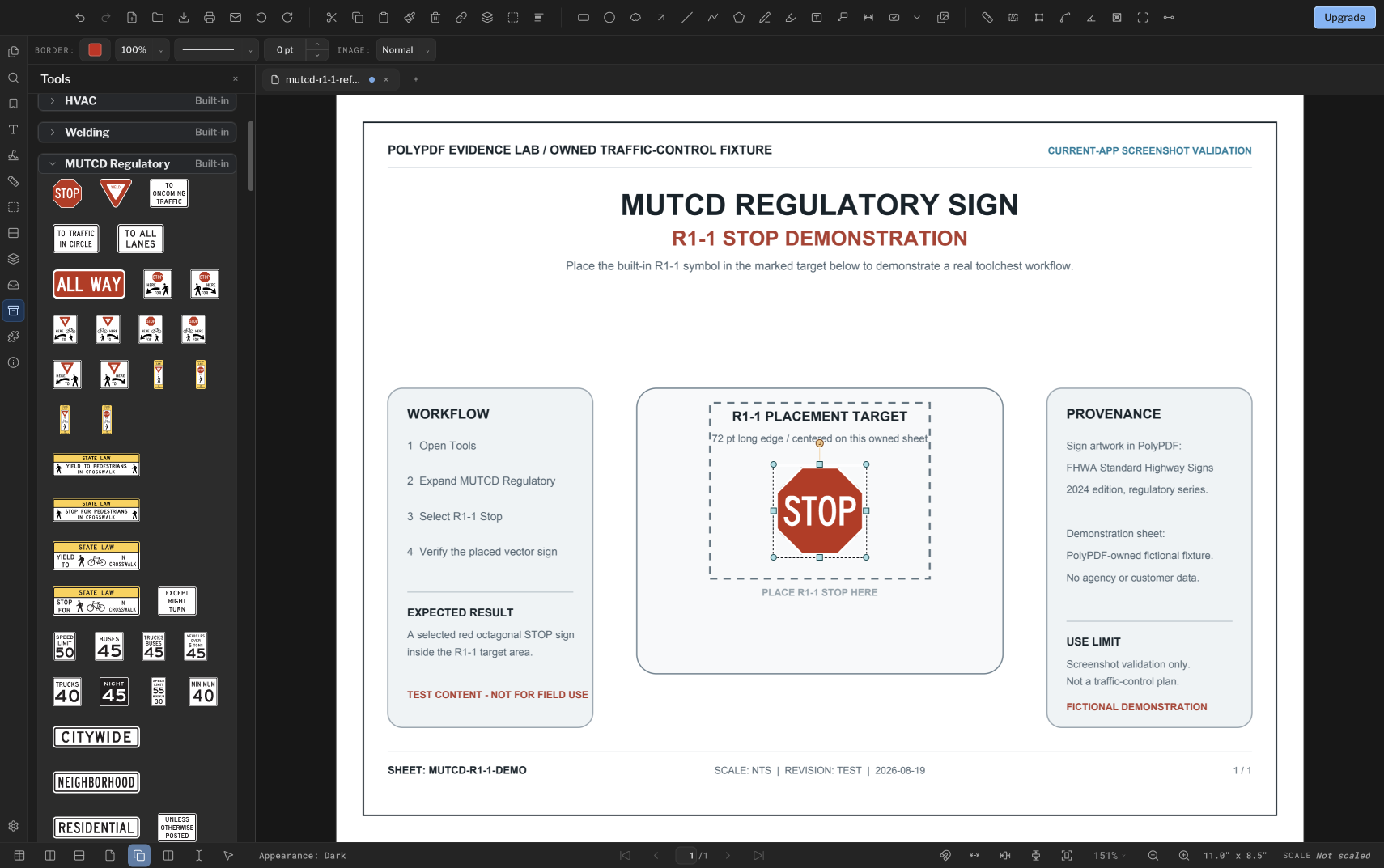
MUTCD signs are not plugins. They are built into PolyPDF as Toolsets. The Regulatory chest contains 435 sign cards; choosing R1-1 Stop and placing it creates an image annotation that can be moved, resized, or deleted like other page content.
The example below runs that browsing-and-placement workflow on a sample traffic-control sheet. Sign artwork comes from the FHWA Standard Highway Signs 2024 release.
How to use a plugin
Every plugin follows the same path. Learn it once and it applies to the next one too.
- Open the Plugin Manager. On macOS: PolyPDF ▸ Plugins…. On Windows: Tools ▸ Plugins ▸ Plugins….
- Choose a row in the single list and read its detail page — publisher, installed version, requested permissions, source, compatibility, and commands.
- For a package you obtained yourself, choose Install from File… and review its signer, source, permissions, and reinstall or downgrade warning before consenting. The three generators pictured here are already installed.
- Run a plugin from Tools ▸ Plugins, then pick its command: Insert AISC Steel Section…, Insert Professional Seal…, or Insert Map….
- Fill in the generator dialog. The preview panel redraws as you type, so you see the result before it touches the document.
- Choose Insert. The content is placed as ordinary annotations, in a single undo step — one Undo removes the whole insertion.
- Use the editing operations supported by that annotation type. A vector profile can be moved, resized, restyled, or deleted; image-based output can be moved, resized, or deleted.
What lands on the page is a standard PDF annotation — a Polygon for a steel section, a Stamp for a seal or a map — written with a baked appearance stream. The content belongs to the document, not to the plugin, which is why uninstalling the plugin leaves it untouched.
What we are watching next
The first three generators are deliberately unalike: a data lookup that draws vector geometry, a template that composes an image, and a generator that reaches outside services. Each one tells us something different about what the package format has to support next.
If a plugin would make your week easier, tell us what it should generate and what it should ask for. Write to support@polypdf.com.
Frequently asked questions
Do PolyPDF plugins require Pro?
Yes. Installing, running, and editing plugin content requires PolyPDF Pro in the current release. The three first-party plugin packages still ship with the app, and previously inserted content stays in the document.
Do PolyPDF plugins run downloaded code?
No. A plugin supplies signed data, artwork, and a declarative form schema. PolyPDF renders the form and runs one of its own built-in generators; plugin JavaScript is not evaluated.
Does a PolyPDF plugin need an internet connection?
AISC Steel Sections and Professional Seal Maker use bundled data and artwork, so they work offline. PDF Maps needs a connection while a place is resolved and OpenFreeMap/OpenMapTiles data is rendered; the inserted result is then stored as a self-contained image annotation.
What happens to inserted content if I uninstall a plugin?
Inserted content remains in the document as ordinary annotations. Uninstalling the generator does not remove the steel profile, seal graphic, or map image it already created.
Are the MUTCD sign chests PolyPDF plugins?
No. MUTCD signs are built-in Toolsets. Plugins generate new content from signed packages; the sign chests are bundled reference libraries you browse and place.
Which plugins come with PolyPDF?
AISC Steel Sections, Professional Seal Maker, and PDF Maps are included with the app and enabled on first run. There is no marketplace, so Install from File… is the path for any package you obtained yourself.
Sources and further reading
- FHWA — Standard Highway Signs 2024 release status — Official source for the sign artwork in the MUTCD Toolset.
- OpenFreeMap — The vector-tile service used by the PDF Maps renderer.
- OpenMapTiles — The vector-tile schema and attribution named in generated maps.
- OpenStreetMap Foundation — Nominatim usage policy — Usage policy for the public geocoding service behind place search.
Try this workflow on your own drawings
PolyPDF is a free download on Mac and Windows. Open your own PDFs, use the markup tools, and place up to 3 hand-created measurements per document before you decide whether to buy.
Free with no trial timer: markup, review, calibration, 3 hand-created measurements per document, and Revision Package viewing. Symbol Search, plugins, and Revision Package changes or publishing require Pro.
Open this on your computer
Copy this link and open it on a Mac or Windows PC.
Link copied.
Link shared.
Sharing cancelled. You can copy the link instead.
Select and copy the link above.
Try a checked construction takeoff
Use the Willow Creek A101 practice drawing on a Mac or Windows PC. The three measurements fit Free; no account is needed.
- macOS 14+: open the DMG and drag PolyPDF to Applications, then launch it.
- Windows 10/11, 64-bit: run PolyPDFSetup.exe, finish installation, then launch PolyPDF.
- Calibrate A101, Revision A, along the printed 20 ft reference.
- Check the independent 96 ft width and 60 ft depth. Stop if either reading disagrees with the drawing.
- Trace the outside boundary: 5,760 sq ft gross area. Review the worksheet, export it, save a copy, and reopen the PDF to check all three measurements.
Two length checks and one area use the three-measurement Free allowance. Gross area includes walls; it is not net flooring or a complete estimate.
These are drawing reference values. The saved example below comes from public Mac 1.6.27 build 99; check your own result on the version you install.
Synthetic practice drawing; not for construction. Desktop installers do not run on phones or tablets.