Why PDF Measurements Are Wrong (and How to Fix Them)
Quick answer
If a PDF measurement is wrong, first confirm that the current page has the correct real-world scale and units. Then remeasure a long labeled dimension with snapped endpoints. If that works but a detail does not, check for a different scale inside that detail. If horizontal and vertical reference dimensions disagree by different percentages, the scan is probably nonuniformly distorted and one calibration cannot make the whole page accurate.
A wrong PDF measurement is usually traceable to the scale, the selected geometry, or the source file. Fixing the cause is safer than applying a correction factor to the final quantities.
- Last verified
- Tested with
- PolyPDF 1.3.4 (build 16)
- Platforms
- macOS and Windows
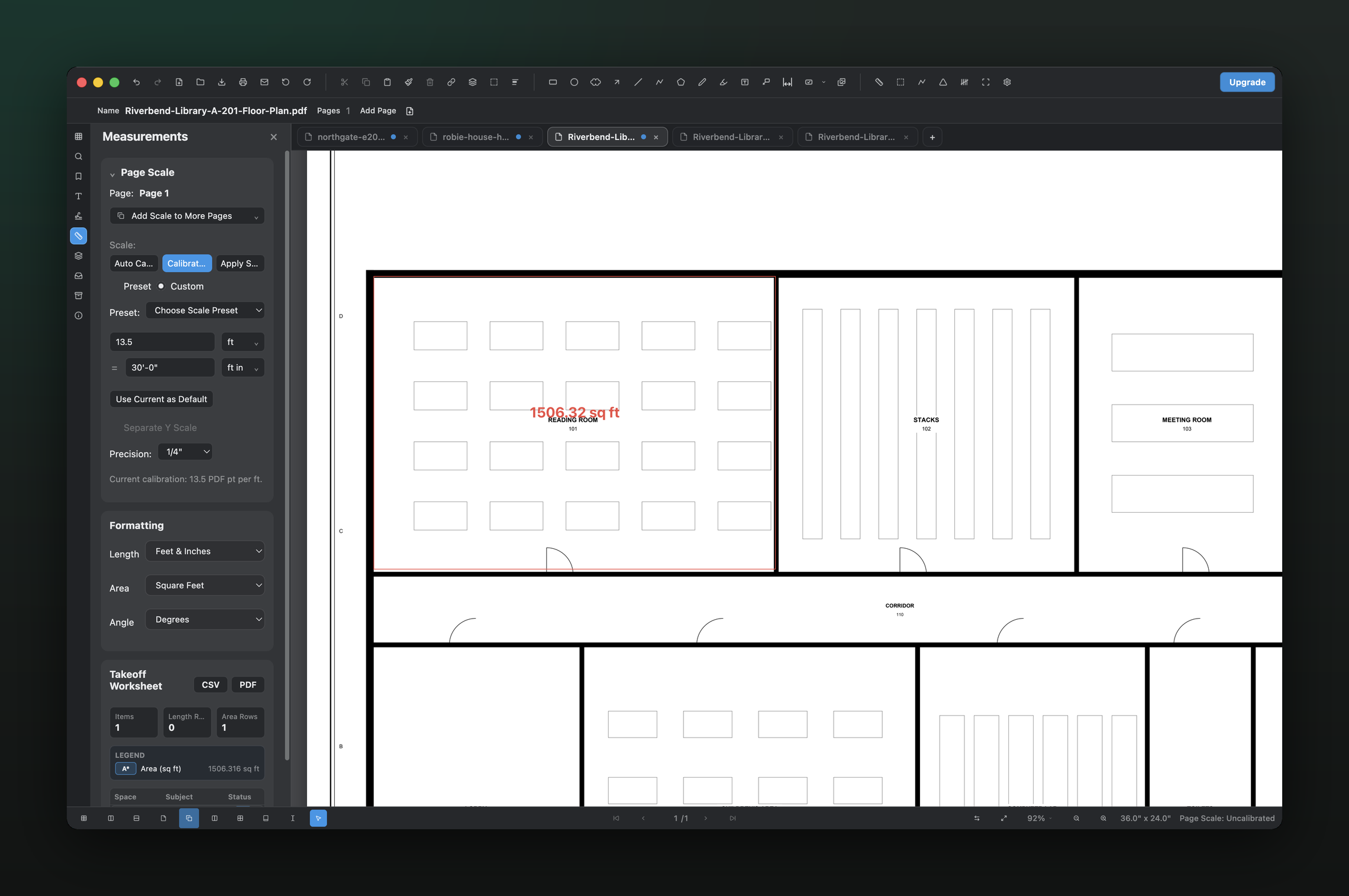
Start with the symptom, not a guessed correction
Measure one long dimension whose printed value is known, on the same page and in the same part of the drawing where the problem appears. Record the expected value, the measured value, the page number, and whether the endpoints snapped. That small test separates a page-wide scale problem from a local selection or detail-scale problem.
| Symptom | Likely cause | Next check |
|---|---|---|
| Every value is wrong by the same ratio | Wrong or missing page calibration | Recalibrate from a long known dimension |
| Values are about 12× or 3.28× off | Imperial/metric base-unit mismatch | Confirm the document’s length format and the scale family |
| Only a detail or blowup is wrong | Mixed scales on one page | Measure outside the detail, then define a Scale Region |
| Small spans vary; long spans are close | Endpoint placement or snap error | Zoom in and use a longer reference |
| Horizontal and vertical checks disagree differently | Nonuniform scan stretch or perspective | Compare two directions and obtain a better source |
| The same record differs between canvas and worksheet | Unexpected application behavior | Save evidence, stop relying on the value, and report the mismatch as a bug |
Cause 1: the page scale is absent or wrong
PDF files store page geometry in points, not a guaranteed construction scale. A title-block note such as 1/4 inch equals 1 foot describes the intended plotted relationship, but a later scan, print-to-PDF step, crop-and-rescale operation, or resize can break it. That is why the file should be calibrated, not merely viewed at 100 percent zoom.
In PolyPDF 1.3.4, a page with no real-world calibration reports lengths in PDF points and areas in square points. It does not silently invent a plausible drawing scale. Use the Scale view for the current page: apply a trustworthy printed ratio, or choose Calibrate by Drawing Line and enter the real length represented by the captured span.
A page-scale badge proves that a scale exists, not that it is correct. Always test a second known dimension after calibration.
Cause 2: the units or scale family do not match
A numeric ratio is meaningful only with its base unit. Twelve PDF points per foot is not twelve PDF points per inch, and a metric 1:100 preset cannot be interpreted as points per foot. PolyPDF filters scale presets through the active imperial or metric measurement family so the stored ratio and formatted result stay aligned.
- Open Measurements › Scale and note whether the preset family is Imperial or Metric.
- Open Formatting and confirm the displayed length and area formats match the project documents.
- Recheck the calibration value. If you change the intended unit system, verify a known dimension again instead of trusting a relabeled number.
- Keep unlike quantity units in separate worksheet rows; do not add feet to metres or square feet to square metres outside a deliberate conversion.
1 ft = 12 in; 1 m ≈ 3.28084 ft
Cause 3: endpoint error grows into quantity error
A few screen pixels can represent a meaningful real-world distance on a zoomed-out plan. Calibrating across a short span magnifies that error. Use the longest reliable dimension available, zoom in, and snap to the actual vector content when possible. PolyPDF’s calibration dialog states whether both endpoints snapped; an unsnapped warning is a reason to inspect, not a promise that the result is unusable.
length factor = k; area factor = k²
- Prefer dimension extension-line intersections or other crisp endpoints over thick line edges.
- Do not calibrate from an object whose nominal size is assumed rather than labeled.
- Repeat the test at another location. Agreement near one endpoint does not test the whole sheet.
- Set the precision needed for display, but remember that extra displayed decimals do not improve the source geometry.
Cause 4: the page contains more than one scale
Plan sheets often combine a main view with enlarged rooms, sections, or details. A correct page calibration can therefore be wrong inside a blowup. In PolyPDF, draw a Scale Region around the differently scaled area, name it, and assign its own preset or points-per-unit value. Measurements created inside that region record the region scale they used.
When regions overlap or a measurement crosses a boundary, treat the choice as a review point. Confirm which view the geometry belongs to rather than accepting whichever scale happens to be closest. Then verify one printed dimension inside the region and one outside it.
Copying a page calibration across a range is appropriate only for pages that really share a scale. The fact that sheets sit in one PDF does not make their scales identical.
Cause 5: the source page is distorted
Uniform resizing is recoverable because one factor maps every page distance to a real-world distance. Nonuniform distortion is different: a scan may be stretched more horizontally than vertically, a phone photo may contain perspective, or a folded original may warp locally. No single page calibration can undo those changes.
- Calibrate from a long horizontal reference, then test a separate horizontal dimension.
- Test a vertical reference in another part of the page.
- If the error ratio changes by direction or location, stop treating the sheet as uniformly scaled.
- Request a vector export or a cleaner scan. If work must continue, document the affected area, the checks performed, and the tolerance you are accepting.
Do not average conflicting checks into a comfortable-looking factor. That can make one spot appear correct while hiding larger errors elsewhere, especially in area takeoff where scale error is squared.
The five-minute recovery sequence
- Select the exact page and revision where the bad value appeared.
- Confirm the page says Calibrated and that its unit family matches the drawing.
- Recalibrate across the longest reliable labeled span.
- Verify another span in the same view, then one in the other direction if the file is scanned.
- Check for a differently scaled detail and use a Scale Region when appropriate.
- Delete or redo quantities created from an incorrect scale, then inspect the Takeoff Worksheet before export.
Free includes up to three hand-created measurements per document, which is enough to run a calibration check plus two independent reference checks. Symbol Search auto-count is uncapped and follows a separate workflow.
Frequently asked questions
Why is my PDF measurement correct on one page but wrong on another?
PolyPDF stores calibration per page because sheets in one file can use different scales. Calibrate the second page or copy a proven scale only when both pages genuinely match.
Why are PDF areas more wrong than lengths?
Area changes with the square of the scale factor. A 2% linear scale error becomes about a 4.04% area error.
Can I fix a distorted scan by calibrating twice?
Two checks can reveal distortion, but a single proportional page scale cannot correct nonuniform stretch or perspective. Obtain a better source or use a carefully documented local workflow.
Does a more precise display setting make measurements more accurate?
No. Precision controls how a result is rounded and displayed. Accuracy still depends on the source geometry, calibration, units, and endpoint placement.
Sources and further reading
Diagnose the scale on a real drawing
Download PolyPDF for macOS or Windows, set the page scale, and use your free measurements to check independent reference dimensions before starting takeoff.
Free with no trial timer. Hand-created measurements are capped at 3 per document.