How to Calibrate a PDF Drawing Scale
Quick answer
To calibrate a PDF drawing, open the page in PolyPDF, choose Measurements › Scale, and either apply the scale notation printed on the sheet or choose Calibrate by Drawing Line. For line calibration, snap the two endpoints to a known span, enter its real-world length, and then measure a different labeled span. Do not begin takeoff until that second value agrees within the tolerance your work requires.
A trustworthy takeoff starts with one page-specific scale and an independent check. PolyPDF lets you apply the scale printed in a title block or draw over a known dimension when the sheet does not state one.
- Last verified
- Tested with
- PolyPDF 1.3.4 (build 16)
- Platforms
- macOS and Windows
Pick the right calibration path
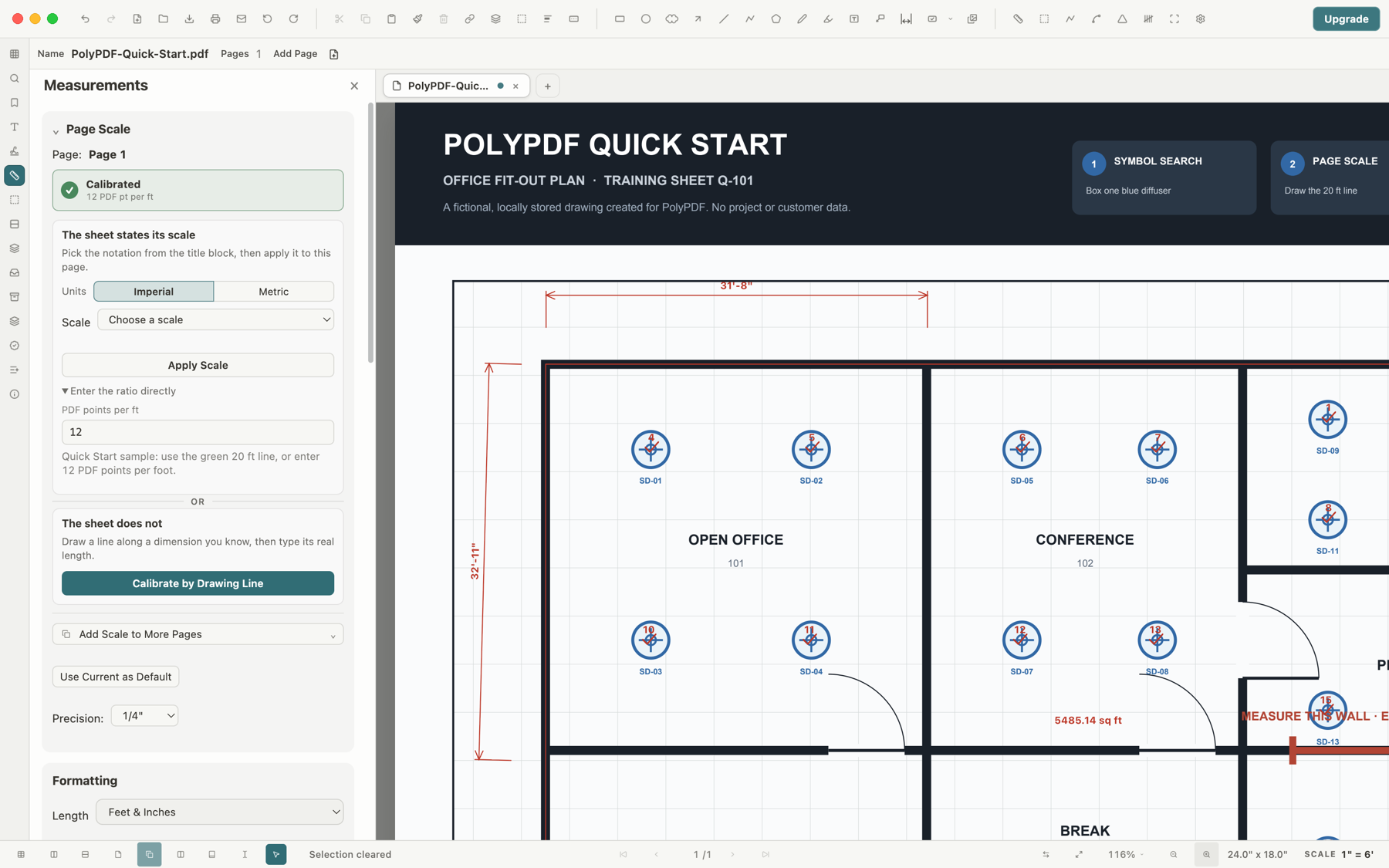
If the title block clearly states a scale and the PDF has not been resized, use the matching architectural, engineering, or metric preset. If the scale is missing, the sheet may have been scanned, or you cannot establish that the file still matches the plotted size, calibrate from a dimension you can verify instead. A drawn calibration uses the geometry actually present in this PDF, which is why it is the safer path for an uncertain file.
- Prefer a long, straight reference dimension. The same endpoint error is a smaller percentage of a long span than of a short one.
- Use a dimension whose value is explicitly printed on the drawing. Do not infer it from a door, grid, or object that only appears standard.
- Zoom in and enable Snap to Content when the reference endpoints coincide with vector linework. PolyPDF reports when one or both calibration endpoints were not snapped.
- Calibrate the page you are actually measuring. PolyPDF stores page calibration per page rather than assuming every sheet in a set shares one scale.
Calibrate from a known line, step by step
- Open the PDF and navigate to the page you intend to measure.
- Open the Measurements panel, choose the Scale view, and confirm the page number shown in the Page Scale card.
- Under “The sheet does not,” choose Calibrate by Drawing Line.
- Click or drag from the first known endpoint to the second. Use a horizontal or vertical span when possible because its endpoints are usually easier to identify.
- In Calibrate Page Scale, enter the real-world Known Distance. PolyPDF accepts the current measurement format, including feet and inches or metric input.
- Confirm the card says Calibrated and shows the captured ratio in PDF points per base unit.
- Switch to a length measurement tool and measure a second labeled dimension that was not used for calibration.
A green “Calibrated” state confirms that a scale was saved; it does not independently prove that the line or typed distance was correct. The second known dimension is the practical proof.
Worked calibration: the bundled Q-101 sample
PolyPDF’s bundled Quick Start drawing includes a green reference line that is exactly 240 PDF points long and represents 20 feet. Dividing the captured page distance by the known real-world distance produces the page scale used by the sample.
240 PDF pt ÷ 20 ft = 12 PDF pt per ft
The Q-101 fixture is useful because the correct result is known, but production drawings deserve the same verification routine. After calibrating from one dimension, measure another. If a 30-foot labeled wall reads 29 feet 11 7/8 inches, decide whether that difference is inside the tolerance for your purpose; if it reads 27 feet, stop and investigate rather than correcting quantities later.
Verify before you take off quantities
| Check | What you want to see | If it fails |
|---|---|---|
| Second known span | A value within your project tolerance | Recheck endpoints, units, and the typed distance |
| Current page | The intended sheet number in the Scale view | Calibrate this page or copy a proven scale only to identical-scale pages |
| Units | Feet/inches or metric matching the source drawing | Switch format and confirm the stored scale still represents the intended base unit |
| Detail or blowup | A reading that follows the detail’s own printed scale | Create a Scale Region for the differently scaled detail |
| Scan geometry | Agreement in more than one direction and area of the sheet | Treat the scan as distorted if one calibration cannot satisfy those checks |
For a multi-page set, “Add Scale to More Pages” copies the current calibration to the page range you choose. Use that convenience only when those pages genuinely share the same scale. A cover sheet, enlarged plan, or detail page can differ even when it is bundled into the same PDF.
When one page contains a detail or blowup at a different scale, PolyPDF’s Scale Regions panel can define a separate scale inside that outline. A measurement created there keeps a snapshot of the region scale it used, so later edits do not silently restate a recorded quantity.
What calibration can and cannot correct
One calibration produces one proportional conversion for the page or region. It can correct a uniformly resized PDF because every length changed by the same factor. It cannot repair nonuniform scan distortion, a photographed page with perspective, a warped original, or different portions of a sheet stretched by different amounts.
- Check a second span far from the calibration line, and check both horizontal and vertical references when the file is a scan.
- If one direction agrees and the other does not, do not average the error into a single scale. Obtain a better source or limit the work to a documented local region and state the limitation.
- Do not use the displayed zoom percentage as drawing scale. Zoom changes the on-screen size, not the PDF-space geometry used by measurement.
- Do not mix values from calibrated and uncalibrated pages. In PolyPDF 1.3.4, an uncalibrated page reports physical PDF points or square points rather than inventing a real-world scale.
A repeatable pre-takeoff checklist
- Confirm the page and revision.
- Choose the stated-scale preset or draw a known calibration line.
- Verify the saved units and page-scale status.
- Measure a different known span.
- Check a second direction if the source is scanned.
- Create scale regions for differently scaled details.
- Only then trace lengths, areas, perimeters, or counts and export the worksheet.
The Free edition includes calibration and up to three hand-created measurements per document. Symbol Search auto-count is uncapped, so you can test a real counting workflow without consuming that manual-measurement allowance.
Frequently asked questions
Can I set one PDF scale for every page?
You can copy a proven calibration to selected pages with Add Scale to More Pages, but PolyPDF stores scale per page. Copy it only when those sheets genuinely use the same scale.
Why should I measure a second known dimension?
The second span catches a misplaced endpoint, an incorrect typed value, the wrong units, or distortion that a single calibration line cannot reveal.
Can calibration fix a stretched or skewed scan?
Only uniform resizing can be corrected with one proportional scale. Nonuniform stretch, perspective, or local warping needs a better source file or a clearly limited local workflow.
Does zoom affect the measurement result?
No. Zoom changes how large the page looks on screen; PolyPDF calculates from PDF-space geometry and the saved page or scale-region calibration.
Sources and further reading
Verify the scale on your own drawing
Try a real calibration before you commit to a takeoff
PolyPDF runs on macOS and Windows. Calibration is included in Free, so you can check a real page and its second reference dimension first.
Free with no trial timer. Hand-created measurements are capped at 3 per document.