PDF Takeoff Worked Example: Scale, Area, Length, and Count
Quick answer
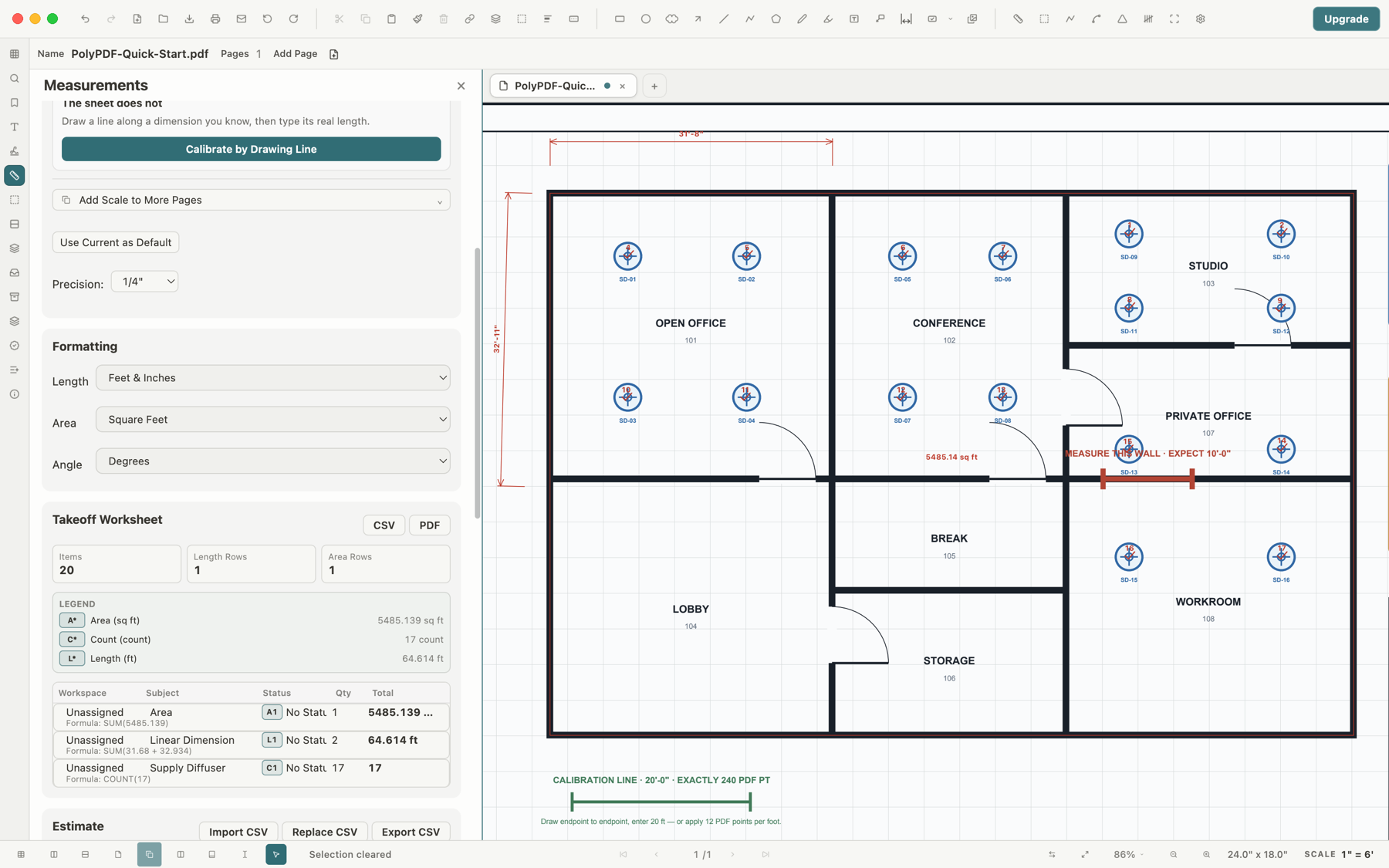
A reliable PDF takeoff follows this order: confirm the sheet and revision, calibrate the current page, verify a second known dimension, trace area and length quantities, use Symbol Search for repeated symbols, review the Takeoff Worksheet, then export CSV or a PDF summary. On the bundled Q-101 sample, the calibration line is 240 PDF points for 20 feet, or 12 PDF points per foot; the live capture also shows a 5,485-square-foot gross area and 17 visual diffuser matches—16 plan symbols plus one legend example that must be excluded from the plan quantity.
This worked example uses PolyPDF’s bundled Q-101 office fit-out plan so the source, calibration, and expected on-screen evidence are reproducible. The same sequence applies to your own drawing after you verify its scale.
- Last verified
- Tested with
- PolyPDF 1.3.4 (build 16)
- Platforms
- macOS and Windows
The sample and the takeoff question
Open the PolyPDF Quick Start sample and go to sheet Q-101, a 24-by-18-inch office fit-out plan. The capture for this guide records four kinds of evidence on one page: a known calibration, gross floor area, two wall dimensions, and repeated diffuser symbols. It is a teaching fixture rather than a bid document, so use the workflow—not its quantities—as the template for your project.
- Area question: what is the traced gross floor area?
- Length question: what wall runs were measured?
- Count question: how many visual matches are present, and which of them belong to the plan quantity?
- Output question: can a reviewer see the items, totals, formula, pages, subject, and status before export?
Step 1: establish and prove the page scale
The Q-101 sample includes a green reference line that is exactly 240 PDF points long and represents 20 feet. In Measurements › Scale, choose Calibrate by Drawing Line, trace that reference, and enter 20 feet as the known distance. PolyPDF saves the calibration for this page.
240 PDF pt ÷ 20 ft = 12 PDF pt/ft
Before adding quantities, draw a temporary measurement over a different labeled span. A second check is what catches a wrong endpoint, a mistyped distance, or an incorrect unit. For a scanned plan, also compare a reference in the other direction because a single proportional scale cannot correct unequal horizontal and vertical stretch.
The scale shown in this sample is intentionally simple for onboarding. A real plan may use an architectural, engineering, or metric preset, or require calibration from its own known dimension.
Step 2: trace area and linear quantities
Choose Area and click around the floor boundary, using enough vertices to follow the intended face. Close the polygon at the starting point. The live Q-101 capture shows a gross floor-area measurement of 5,485 square feet. That number describes the traced sample geometry; it is not an estimate of usable, rentable, finish, or code area unless your boundary definition makes it one.
- Name the area’s Subject so its worksheet row explains what the polygon represents.
- Inspect the boundary at corners and openings. Add area cutouts when a void must be excluded rather than mentally subtracting it later.
- Use Line Measurement, Dimension, Path Length, or Perimeter according to the quantity. An open run and a closed perimeter answer different questions.
- Give unlike assemblies distinct Subjects. A wall, curb, cable tray, and pipe should not collapse into one length total merely because they share units.
- Use Status to distinguish accepted work from an item that still needs checking before export.
The capture shows two wall dimensions as visual examples. Their value is not that there are exactly two; it is that each measurement remains an identifiable record that can be selected from the page or reviewed in the worksheet.
Step 3: count repeated symbols with Symbol Search
For repeated symbols, open Symbol Search, draw a box tightly around one clean example, run the search, and review the candidates before accepting them as counts. The Q-101 capture shows 17 visual matches: 16 diffuser symbols in the plan plus one matching legend example. Exclude that legend match to reach the 16-item plan quantity, then check for partial symbols, similar-looking devices, and objects hidden by markup.
- Choose a representative symbol with clear linework and little surrounding text.
- Keep the query box tight enough to describe the symbol, but include the features that distinguish it from nearby objects.
- Review each candidate overlay rather than treating the match count as an unquestionable total.
- Accept the reviewed matches so they become ordinary count records on the document.
- Set the Subject to the actual item, such as Supply Diffuser, instead of leaving unlike count series ambiguous.
Symbol Search auto-count is uncapped in Free. The separate Free limit is three hand-created measurements per document, so a user can test calibration, area or length, and a real auto-count workflow without a paid license.
Step 4: review the Takeoff Worksheet
Open Measurements › Records after placing the quantities. PolyPDF builds worksheet rows from the measurements and counts in the document. Rows keep distinct workspace or space assignment, Subject, Status, quantity kind, unit, and count series separate so unlike work does not become one unexplained number.
| Field | Question to ask | Why it matters |
|---|---|---|
| Workspace / Space | Is the item assigned to the intended room, zone, or unassigned bucket? | Prevents totals from being attributed to the wrong work area |
| Subject | Does the label name the assembly or item? | Keeps different scopes from merging under a generic name |
| Status | Is the value accepted, pending, or rejected? | Makes unresolved review work visible |
| Qty and Total | Do the item count and aggregate agree with the page? | Catches duplicate or missing records |
| Formula | Can you trace the displayed SUM or COUNT to its components? | Provides a compact arithmetic audit trail |
| Unit | Are lengths, areas, volumes, angles, and counts separated? | Stops unlike quantities from being added |
Select suspicious rows and return to the page before exporting. The worksheet is a review surface, not a replacement for understanding what each traced boundary or accepted match represents.
Step 5: export a reviewable result
Use CSV when the next step is spreadsheet estimating, filtering, or joining quantities to a cost database. Use the PDF summary when a person needs a fixed, readable handoff. PolyPDF exports the current worksheet; it does not certify that the source drawing, scale, boundaries, subjects, or accepted Symbol Search matches were correct.
- Keep the source PDF revision with the export so a reviewer knows which drawing produced the quantities.
- Record assumptions such as gross versus net area, centerline versus face-of-wall length, and whether cutouts were included.
- Spot-check at least one row of each quantity kind against the annotated page.
- After a drawing revision, rerun the affected takeoff rather than silently carrying forward values from the old geometry.
This example demonstrates the software workflow, not a professional estimate or bid. The person preparing the takeoff remains responsible for source documents, scope interpretation, waste factors, assemblies, pricing, and review.
Frequently asked questions
What should I do first in a PDF takeoff?
Confirm the sheet and revision, calibrate the current page, and verify a different known dimension before tracing any quantities.
Can PolyPDF export a takeoff to CSV?
Yes. The Takeoff Worksheet exports CSV for downstream spreadsheet work and a PDF summary for a fixed review handoff.
Does Symbol Search accept every match automatically?
The workflow is designed for review: draw a query around one symbol, inspect the candidates, then accept the matches that should become counts.
Is the 5,485-square-foot value a recommendation for my project?
No. It is the gross-area annotation shown on the bundled Q-101 teaching fixture. Your result depends on your drawing, calibration, and chosen boundary definition.
Sources and further reading
Run the same sequence on your drawing
PolyPDF is a free download for macOS and Windows. Start with one verified page, create a small takeoff, and inspect the worksheet before deciding whether the full workflow fits your work.
Free with no trial timer. Hand-created measurements are capped at 3 per document.