Use a PDF Markup Table for RFI and Punch-List Review
Quick answer
Create one markup per issue, give it a stable subject, put the actionable question or observation in Comments, and assign a review status. Open the Markup Table to select and reveal rows, sort or filter the register, and update statuses. Detailed exports contain all markup rows; summary exports use the visible filtered scope. PolyPDF does not create or attach a formal RFI, submittal, or punch record.
A cloud on a plan explains where an issue is. A disciplined markup row explains what it is, who must review it, and what can be handed to the system that owns the formal record.
- Last verified
- Tested with
- PolyPDF 1.3.4 (build 16)
- Platforms
- macOS and Windows
Define what PolyPDF owns in the workflow
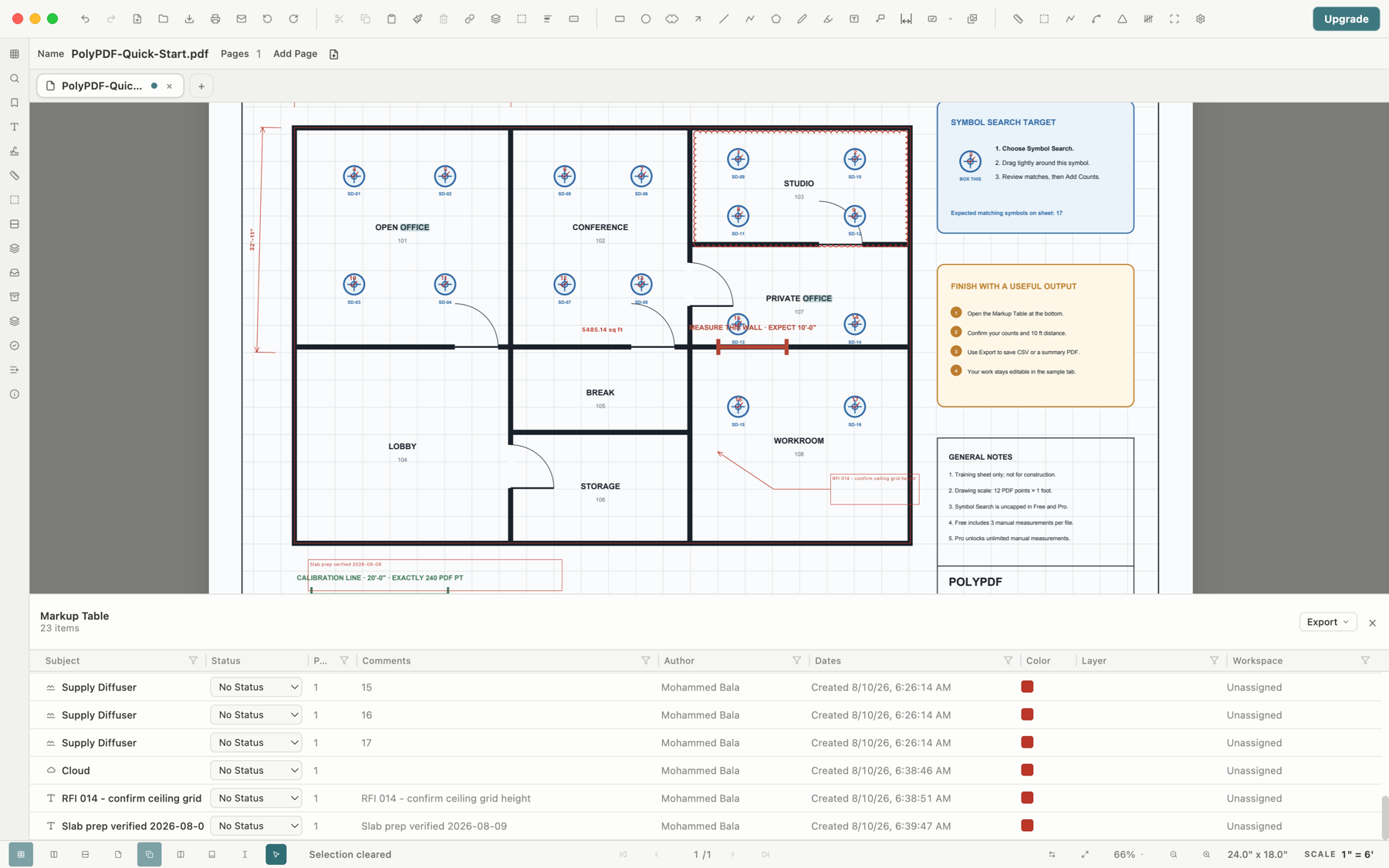
PolyPDF can hold visual evidence and a structured register of PDF markups. Rows carry subject, status, page, comments, author, dates, color, layer, workspace, and configured custom columns. Selecting a row reveals its page markup.
That is useful input to an RFI or punch-list process, but it is not the system of record by itself. PolyPDF does not assign a formal RFI number from a project server, route the question to a design professional, attach an official response, enforce contractual due dates, or prove that an issue was issued. Perform those steps in the project platform or procedure your team has approved.
The screenshot includes a callout labeled “RFI 014” as drawing content. That label is an example written by the reviewer, not evidence that an RFI record or attachment exists elsewhere.
Choose a naming and status convention first
A register becomes searchable when subjects are predictable. Put the durable identifier and a short description in Subject, then use Comments for the complete question, observation, or acceptance note. Do not leave the only meaningful description inside a callout graphic.
| Use case | Subject pattern | Suggested status path |
|---|---|---|
| Design question | RFI-014 — Confirm ceiling grid height | Open > In Progress > Reviewed or Accepted |
| Punch item | PUNCH-107 — Seal wall penetration | Open > In Progress > Completed > Reviewed |
| Rejected proposal | ASI-006 — Door swing revision | Open > Rejected |
PolyPDF offers No Status, Open, In Progress, Completed, Accepted, Rejected, and Reviewed. Your project may define those words differently. Document the team's meaning before review begins; for example, Completed may mean the field work is reported complete, while Reviewed means someone independently checked it.
Build the issue register on the drawing
- Open the correct drawing revision and save a working copy if your document-control procedure requires one.
- Add a cloud, callout, text, shape, photo stamp, or other markup at the exact issue location. Keep one independently closeable issue per markup or logical group.
- Set a specific Subject. Put the requested decision, observed condition, dimension, or acceptance criterion in Comments.
- Open the Markup Table from the footer control, Window > Panels > Markup Table, or the sidebar context menu.
- Select a row to reveal its associated page markup. Use the Status control in the row to apply the agreed review state.
- Sort a column by its heading. Use the funnel controls on supported columns to keep only the values relevant to the current review.
- Review the visible rows against the page, then choose a full-detail export or a filtered summary for the receiving workflow.
The table can also update comments and subjects inline. Multi-selection can support consistent bulk status changes, but scope those changes carefully: a convenient batch edit is not a substitute for verifying each location.
Filter for a focused review session
Use the table as a review window, not a second drawing. A superintendent might filter to one page or workspace, an architect might inspect a specific subject family, and a closeout reviewer might focus on rows whose current status still requires action. PolyPDF keeps the visible row connected to the page so the reviewer can inspect geometry and context before changing the state.
- Filter Page when the meeting is reviewing one sheet or area.
- Filter Subject or Comments for a known issue prefix, discipline, room, or tag.
- Filter Author, Layer, or Workspace when responsibility or drawing organization carries the scope.
- Sort Status to group the lifecycle states, then inspect every row before a bulk update.
- Clear filters before final reconciliation so an unresolved row is not omitted merely because it was hidden.
A filtered count is only the visible subset. Summary exports record that scope, but detailed CSV, JSON, and copied-text exports still include every markup. Compare visible and total counts before distributing either output.
Export the evidence your receiving process needs
The Markup Table export menu offers detailed CSV, summary CSV, summary PDF, JSON, and copied text. Detailed rows include the built-in fields shown in the table and configured custom-column values. The summary formats aggregate the visible scope, which is useful for a meeting record or progress snapshot.
| Output | Good fit | Important check |
|---|---|---|
| Detailed CSV | Import, spreadsheet reconciliation, or a formal register | It includes all markups, not only filtered rows. |
| Summary CSV | Counts by status, page, subject, workspace, or custom value | It summarizes the current visible scope. |
| Summary PDF | Human-readable review attachment | Inspect the rendered pages before issue. |
| JSON or copied text | Structured handoff or quick communication | The receiving system still owns validation and record creation. |
Attach the reviewed PDF or summary to the formal RFI or punch record according to project procedure. If the official platform assigns a different identifier, update the PolyPDF subject or maintain an explicit cross-reference rather than allowing two numbering systems to drift.
Closeout checks that keep the register honest
- Verify the PDF file name, revision, and sheet identity before adding or closing issues.
- Require a comment that explains why a status changed when the change is not self-evident.
- Distinguish reported completion from independent review in the team's status rules.
- Reopen the saved PDF and inspect representative rows, page links, comments, and appearances.
- Export after filters are intentionally set, and label the export with its scope and date.
- Keep the authoritative RFI, punch, response, approval, and due-date history in the designated project system.
This separation makes the workflow stronger: PolyPDF remains the direct visual review record, while the project system remains the place where contractual communication and closure are controlled.
Frequently asked questions
Does PolyPDF create a formal RFI?
No. It can label a markup, store comments and status, and export the review data. A formal RFI number, routing, response, due date, and issue history belong in your approved project system.
Do Markup Table filters apply to every export?
No. Summary CSV and summary PDF use the visible filtered scope. Detailed CSV, JSON, and copied text include every markup row. Check visible and total counts before distribution.
Which markup statuses are available?
No Status, Open, In Progress, Completed, Accepted, Rejected, and Reviewed. Define what each state means for your team before using them as a controlled process.
Can I export PDF comments to CSV?
Yes. PolyPDF can export detailed markup rows as CSV, including subject, status, page, comments, author, dates, color, layer, workspace, and configured custom columns.
Sources and further reading
- PolyPDF 1.3.4 (build 16) Markup Table implementation and in-app guidance — Row fields, status vocabulary, filtering, selection, and export formats re-verified August 18, 2026.
- Owned PolyPDF Quick Start drawing and live-app capture evidence — The example RFI label is drawing markup, not proof of an external project record.
Turn drawing comments into a reviewable register
Download PolyPDF for macOS or Windows, mark up a working copy, and open the Markup Table to review the resulting rows. Keep formal RFI and punch records in the system your project designates.
Free with no trial timer. Hand-created measurements are capped at 3 per document.