How to Create a Fillable PDF Form
Quick answer
For an unsigned, unrestricted PDF, open Forms and place Text, Multiline Text, Checkbox, Radio, Combo Box, or List Box fields. Give each a unique name, tooltip, options, flags, and tab order, then test a saved copy in PolyPDF and another target viewer. PolyPDF authors AcroForms; signed or secured PDFs block authoring, and dynamic XFA is preserved but not filled as an ordinary AcroForm.
A reliable fillable PDF is more than boxes over a page. Its fields need stable names, useful tooltips, sensible tab order, compatible behavior, and a saved-file test in the viewers recipients will use.
- Last verified
- Tested with
- PolyPDF 1.3.4 (build 16)
- Platforms
- macOS and Windows
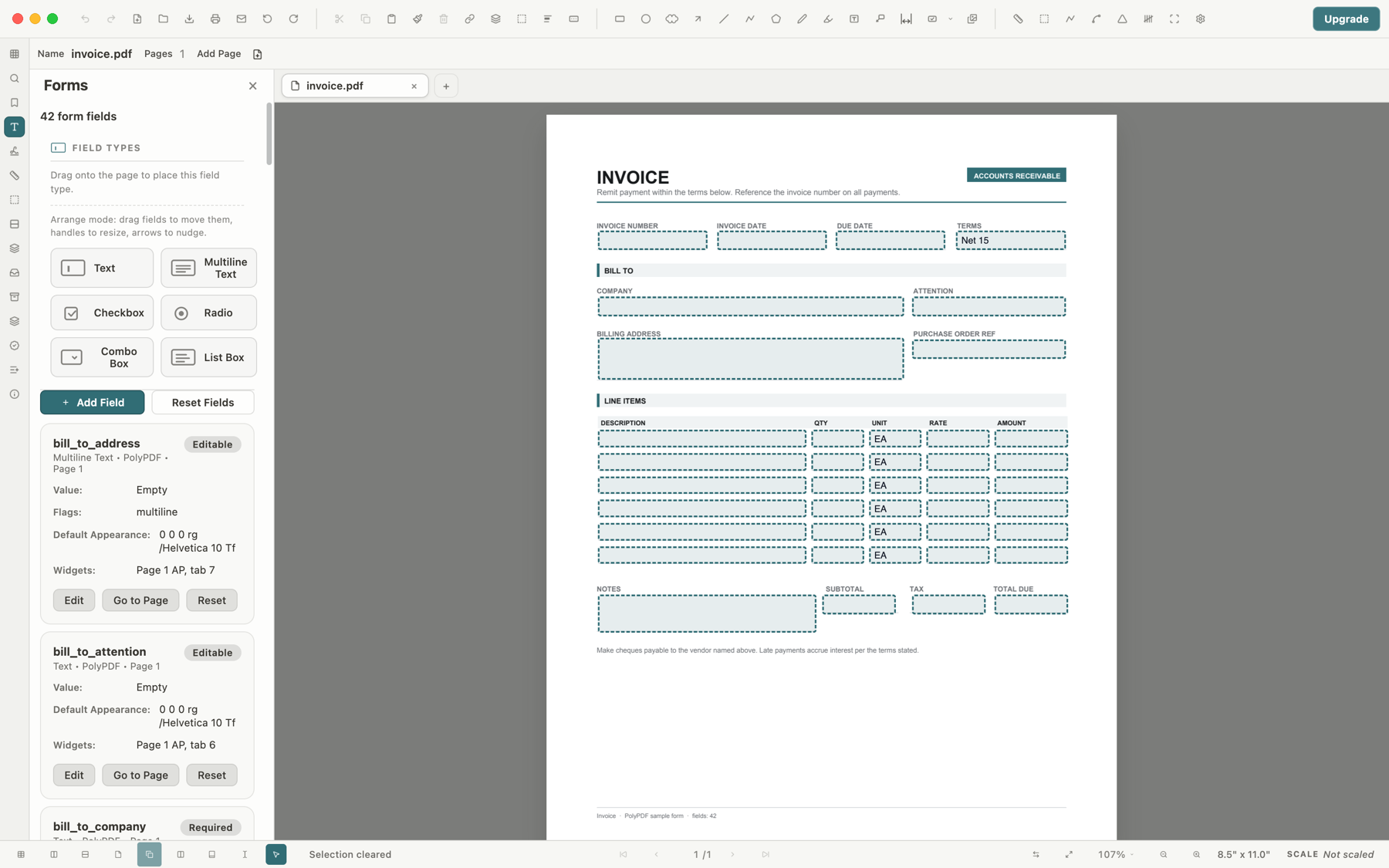
Start with a compatible PDF and a field plan
PolyPDF can add AcroForm fields to an ordinary PDF or edit supported fields in an existing AcroForm. Authoring is locked when a document is encrypted, permission-restricted, or digitally signed. XFA forms follow separate rules below.
Before placing fields, list what the form collects, which values are required, the tab order, and the viewers recipients use. Keep visible labels in the page artwork; a field is not a substitute for instructions, units, or legal wording.
Work on a copy. Adding or editing fields changes the PDF structure, and it is intentionally blocked on signed documents because rewriting that structure can invalidate the signed revision.
Choose the right AcroForm field type
| Field type | Use it for | Setup check |
|---|---|---|
| Text | Names, dates, amounts, or other single-line values | Set a stable name and enough width for expected input. |
| Multiline Text | Addresses, notes, explanations, or scope descriptions | Allow enough height and test long entries. |
| Checkbox | Independent yes/no or selected/not-selected choices | Use a clear visible label for each box. |
| Radio | One choice from a mutually exclusive group | Provide at least two option values. |
| Combo Box | A drop-down choice, optionally with editable text | Provide at least one option and decide whether custom text is allowed. |
| List Box | A visible option list, optionally multi-select | Provide at least one option and test keyboard selection. |
Existing signature and push-button fields can be preserved, but the current builder does not author them. Use the separate digital-signature workflow when cryptographic verification is required.
Place and configure the fields
- Open the PDF and show the Forms panel from the sidebar or Window > Panels > Forms.
- Drag a field type from the palette onto the page. You can also select a type and click the page, or choose Add Field for numeric placement.
- Enter a unique field name. PolyPDF rejects blank names, duplicates, certain bracket characters, and periods because PDF reserves a period for parent-child field-name hierarchy.
- Add a visible tooltip that identifies the field to someone navigating without relying only on page position.
- For radio, combo, and list fields, enter one option per line. Radio groups require at least two options.
- Set the relevant behavior flags, such as Required or Read Only, and add a default value only when the form's business rule calls for one.
- Set the page and tab order. Arrange the field on the page by dragging its move grip, resize it with the handles, or nudge it with the arrow keys.
- Repeat with a consistent naming scheme, then save a working copy before the fill test.
Use names that describe data, such as bill_to_company, rather than positions such as top_left_1. Stable names help downstream mappings survive layout changes.
Handle signed, secured, and read-only forms safely
Encrypted or permission-restricted PDFs keep form authoring locked. Digitally signed PDFs also keep authoring locked to protect the signed revision. Obtain an authorized, unsigned source or revise the upstream form rather than trying to defeat those controls.
An unsigned, unrestricted AcroForm can still have Read Only fields. PolyPDF can offer a session override, and Make Permanently Fillable can clear that flag in a new revision. It is unavailable for signed or secured documents and does not unlock every form technology.
- Preserve the original before clearing read-only flags.
- Confirm that you are authorized to alter the form, not merely able to open it.
- Use Undo or Revert to Saved if the result is not the intended form state.
- Apply digital signatures after form design and approved filling are complete, not before authoring changes.
Know the XFA boundary
PolyPDF authors AcroForms, not XFA templates. A dynamic XFA form asks a compatible XFA viewer to generate fields at runtime; PolyPDF preserves that data but cannot fill or author those generated fields as ordinary PDF controls. Dynamic XFA therefore remains a specialist compatibility case, not a promise that any government or enterprise form can be converted by opening it.
Some static or hybrid XFA PDFs also contain usable AcroForm fields. Those can be filled, but PolyPDF warns about the XFA layer. Saving may remove the stale XFA layer so other viewers show the entered values. Test a copy in the recipient viewer.
If the form must remain an XFA document for an agency workflow, use the workflow and viewer specified by that agency. Do not treat a visually correct AcroForm copy as proof of XFA submission compatibility.
Test the saved form like a recipient
- Save a new PDF and reopen it rather than relying only on the unsaved editor view.
- Tab from the first field to the last. Confirm order, focus visibility, tooltips, and keyboard operation.
- Enter short, long, blank, and non-ASCII sample values where relevant. Check clipping, scrolling, and multiline behavior.
- Exercise every checkbox, radio group, combo box, and list box. Confirm defaults, required states, and option labels.
- Reset representative fields and verify that their default values return as intended.
- Open the saved copy in at least one other PDF viewer your recipients use, then print or export a test copy if that is part of the workflow.
- Keep the clean template separate from completed forms and from any later digitally signed record.
PolyPDF preserves JavaScript actions it encounters and evaluates a restricted safe subset used by supported form calculations. It is not a full Acrobat JavaScript runtime. Explicitly test calculations, validation, submission actions, and any enterprise dependency in the viewer your recipients are required to use.
Frequently asked questions
Can PolyPDF make any PDF fillable?
It can add AcroForm fields to ordinary compatible PDFs, but form authoring is blocked for signed, encrypted, or permission-restricted documents. Dynamic XFA forms are not ordinary AcroForms and cannot be authored or filled the same way.
Which fillable field types can PolyPDF create?
Text, Multiline Text, Checkbox, Radio, Combo Box, and List Box. Existing signature or button fields may be preserved, but the current builder does not create those types.
Can I edit a digitally signed PDF form?
PolyPDF blocks form authoring on PDFs with a protected digital-signature record. Use an authorized unsigned source, complete the form workflow, and sign the final approved revision.
Will a fillable PDF work in every viewer?
No PDF editor can make that assumption for every viewer and advanced feature. Reopen the saved file and test the viewers, operating systems, scripts, printing path, and submission process your recipients actually use.
Sources and further reading
- PolyPDF 1.3.4 (build 16) Forms panel, form-authoring model, and in-app guidance — Field types, naming rules, authoring gates, read-only behavior, and XFA disclosures re-verified August 18, 2026.
- Owned PolyPDF sample invoice and live-app capture evidence — The screenshot shows 42 standard AcroForm fields in the bundled sample.
Build and test a form on a safe copy
Download PolyPDF for macOS or Windows, duplicate an unsigned and unrestricted source PDF, and build a small AcroForm first. Reopen the saved file in the viewers your recipients use before rolling it into a live process.
Free with no trial timer. Hand-created measurements are capped at 3 per document.