How to Compare PDF Drawing Revisions
Quick answer
Open the baseline PDF, choose Document > Compare Documents, select the revised PDF, and run Compare. PolyPDF opens a new comparison document and normally marks detected regions with editable violet revision clouds. First confirm sheet identity, page order, size, rotation, scale, and alignment. If a fallback warning says the marks are page content, they are not editable.
A visual diff can make a revision review faster, but only when the two files are genuinely comparable and every highlighted region is checked in drawing context.
- Last verified
- Tested with
- PolyPDF 1.3.4 (build 16)
- Platforms
- macOS and Windows
Confirm that the two PDFs are comparable
PolyPDF compares corresponding pages visually. It does not interpret sheet numbers or realign a reordered set. A page shift, different crop, rotation, plot scale, or scan skew can produce broad pixel differences that are poor design-change evidence.
- Confirm that Document A is the intended baseline and Document B is the intended revision.
- Match sheet identity and page order. If a cover sheet was inserted, reorganize copies before comparison so like pages occupy the same positions.
- Check page dimensions, CropBox, and displayed rotation for each relevant sheet.
- Confirm that both files were plotted at the same drawing scale and from the same registration point.
- For scans, check skew, stretching, shadows, and capture resolution; those differences can dominate the visual result.
- Preserve the originals and work from named copies under your document-control procedure.
A comparison tool answers “which rendered regions differ?” It does not answer “which differences are approved, intentional, or contractually significant?”
Run Compare Documents
- Open the baseline PDF in PolyPDF. The current document becomes Document A.
- Choose Document > Compare Documents… and verify that the Current File card names the correct baseline.
- In Revised File, choose Browse and select Document B. The current workflow compares the full page sets.
- Choose Compare. PolyPDF renders and compares changed pages while reporting progress.
- Wait for the new comparison document to open. It receives its own tab and is not written back over the baseline.
- Read the completion status. It reports compared pages and marked changes, and warns if this run could not produce editable markups.
- Inspect every marked region in context, then save the comparison document under a new controlled name.
The default output is a copy of Document A with detected regions added. Unchanged pages are left as they were. Because the output opens as a new unsaved document, Save prompts for a location; closing it does not silently replace either source file.
Worked use case: controlled changes on a generated drawing
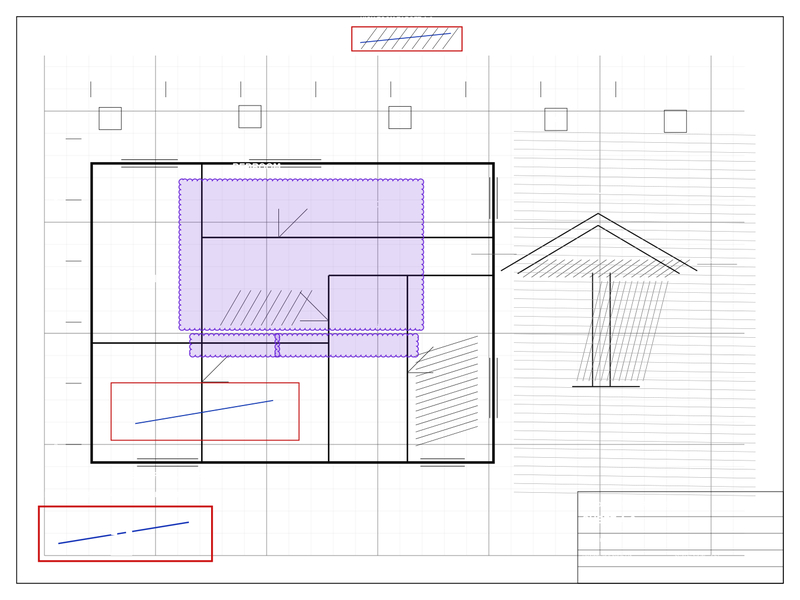
The screenshot comes from an owned generated fixture with known visual changes. PolyPDF outlined separated raster-diff regions with violet revision clouds. The repeatable evidence proves that the current build produces marked comparison output without customer data or an invented interface.
In a project review, use the same method with a baseline and revised issue set. Open each cloud, look at the underlying geometry or text, and write a concise comment or status only after deciding what changed. A detected hatch, line, or label movement may be important; it may also be a plotting or alignment artifact.
Do not use the number of detected regions as a count of design decisions. One decision can create several separated pixel regions, and one broad alignment change can create a large region.
Understand editable clouds and the fallback
| Output path | What you can do | How to verify it |
|---|---|---|
| Normal raster comparison | Detected regions are ordinary editable revision-cloud markups that can be selected, commented on, recolored, filtered, or deleted. | Select a cloud and confirm that it appears as a row in the Markup Table. |
| Coarse fallback | Detected marks are baked into page content and are not editable markup objects. | Read the warning in the completion status and confirm that the marks cannot be selected as Markup Table rows. |
The fallback exists so a rasterization or diff failure can still return a derived comparison artifact instead of silently ending with nothing. Its result is useful as a visual aid, but it cannot support a markup-status workflow. If editability matters, rerun after checking the inputs and environment or create review markups manually.
Page-count and alignment edge cases
A baseline page missing from a shorter revision can be marked as a whole-page change. Pages found only in the revision contribute to the difference count, but Document A has no page on which to draw their cloud. Reconcile page counts separately.
When all or most of a sheet is highlighted, stop and diagnose alignment before reviewing details. Compare the sheet border, title block, known grid intersections, and a few stable dimensions. A small translation, changed crop, or different plot scale can make unchanged work appear revised throughout the page.
- If page order differs, create aligned working copies and compare again.
- If size or scale differs, return to the source export when possible instead of interpreting a stretched raster.
- If a scanned page is skewed, correct the scan or treat the result as a manual visual review aid.
- If annotations differ but base content does not, decide whether annotation changes belong in the review scope.
Inspect and issue the comparison record
- Review every region at a useful zoom and classify it as substantive change, expected annotation difference, or comparison artifact.
- For editable output, use clear comments and statuses in the Markup Table rather than relying on color alone.
- Check added and removed sheets outside the cloud count and reconcile the page lists.
- Save the comparison under a name that identifies both source revisions and the review date.
- Reopen the saved file in PolyPDF and, when it will be issued externally, in another expected PDF viewer.
- Verify that cloud appearances, editability expectations, comments, and source revision references survived the save.
- Distribute the comparison as review evidence, not as a replacement for the approved revised drawing.
The defensible deliverable is not merely a PDF with colored clouds. It is a named comparison record whose source files are known, whose inputs were aligned, and whose detected regions were inspected by a responsible reviewer.
Frequently asked questions
Does PDF comparison prove that a design change is valid?
No. It detects rendered differences. A qualified reviewer must decide whether each region is intentional, approved, relevant, or just a plotting or alignment artifact.
Does Compare Documents overwrite the original PDF?
No. PolyPDF opens the marked result as a separate new comparison document based on Document A. Save it under a new controlled name.
Are comparison revision clouds editable?
Normally yes: the raster comparison writes editable revision-cloud markups. If a coarse fallback is used, the completion status warns that the marks are part of the page and not editable.
Why is nearly the whole page marked as changed?
First check page identity, order, size, crop, rotation, scale, alignment, and scan skew. A geometric or plotting mismatch can create widespread pixel differences even when the design is largely unchanged.
Sources and further reading
- PolyPDF 1.3.4 (build 16) Compare Documents implementation and in-app guidance — New-document output, progress, editable-cloud default, and non-editable fallback warning re-verified August 18, 2026.
- Owned generated comparison fixture and current feature-proof output — Used to verify detected regions without customer data.
Compare two controlled drawing copies
Download PolyPDF for macOS or Windows, preserve both source PDFs, and run Compare Documents on aligned copies. Inspect every region before treating the result as project evidence.
Free with no trial timer. Hand-created measurements are capped at 3 per document.