How to Count Symbols in a PDF Drawing
Quick answer
Choose Symbol Search, set the pages and matching options, then drag a close box around one clean example. PolyPDF highlights candidate matches without changing the document. Include or exclude each candidate, then choose Count to create one linked Count series. Treat the result as assisted counting, not proof: legends, schedules, similar symbols, and low-quality scans can all need manual correction.
Symbol Search can turn one boxed example into a reviewable set of count candidates. The useful result comes from pairing that automation with a deliberate human check before anything is added to the PDF.
- Last verified
- Tested with
- PolyPDF 1.3.4 (build 16)
- Platforms
- macOS and Windows
What Symbol Search actually does
Symbol Search compares the visual sample you box with rendered regions of the pages you choose. It is useful for repeated plan marks such as diffusers, receptacles, fixtures, valves, or keyed details. It does not read the designer's intent, understand a legend, or decide which candidates belong in an estimate. The output is a set of proposed matches for you to review.
Matching runs on the device. You can search the current page, all pages, or a page range and adjust confidence, rotation matching, and scale tolerance. Until you press Count, the candidates are only a review overlay: the document and its takeoff records have not changed.
Use a human check even when every highlight looks plausible at first glance. A title-block symbol can be graphically identical to a plan symbol while representing no installed quantity.
Step by step: run a symbol count
- Open the drawing and go to the sheet that contains a clean example of the item you want to count.
- Choose Symbol Search from the measurement toolbar or from Tools > Measure. The Search sidebar switches to its Symbol view.
- Enter a subject that will make sense in the takeoff later, such as Supply Diffuser Q-101 rather than a generic Auto Count label.
- Choose Current Page, All Pages, or a specific page range. Start narrow when title blocks and legends repeat across many sheets.
- Set confidence, Match rotations, and scale tolerance. Keep the defaults for a first pass unless the drawing gives you a reason to broaden the search.
- Drag a tight box around one complete symbol. Avoid including its identifier, nearby walls, or dimension lines when those elements vary between placements.
- Review the highlights. Click a candidate to include or exclude it, or use Previous and Next to inspect them one at a time. Candidates overlapping an existing Count are marked Already counted and excluded by default.
- Choose Count only after the selected total matches what you can defend. PolyPDF converts the accepted candidates into one linked Count series under the subject you entered.
Worked example: why 17 matches may mean 16 installed items
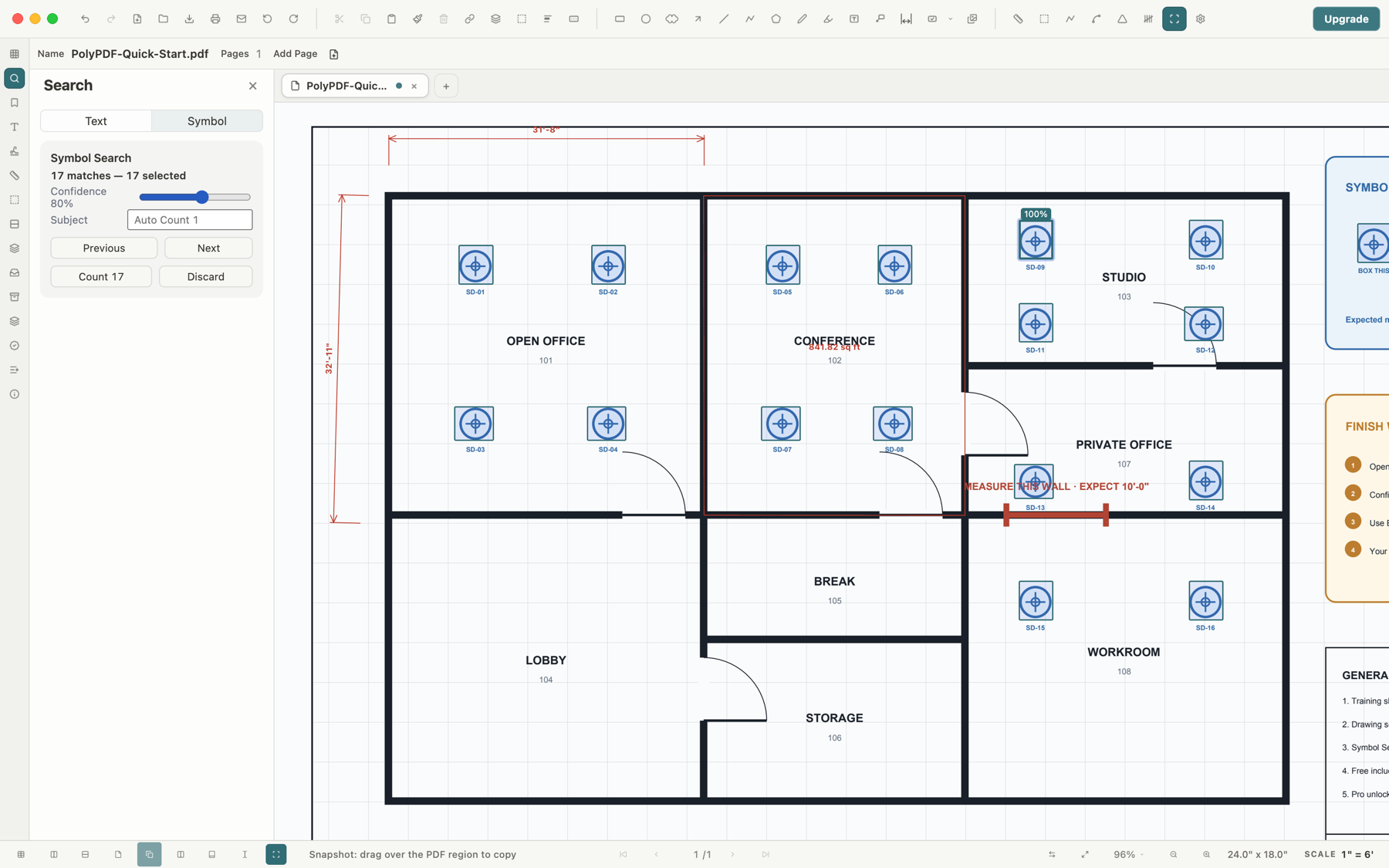
The bundled Quick Start sheet contains 16 blue diffuser symbols in the floor plan and one matching diffuser graphic in the instruction legend. The screenshot above reports 17 matches because the search correctly found all 17 visually similar graphics. That is a successful visual search, but it is not automatically the correct installed quantity.
For a supply-diffuser takeoff, inspect the legend candidate and exclude it before committing. If the legend itself is in scope for a different audit, keep it. The software cannot infer that business rule from pixels; the reviewer supplies it. Record the subject clearly so a later reviewer can tell what the linked series represents.
17 visual matches - 1 legend sample = 16 plan symbols
Tune the search without hiding uncertainty
| Control | When to change it | What to re-check |
|---|---|---|
| Confidence | Lower it when real symbols are being missed; raise it when many look-alikes appear. | A lower threshold usually increases both recall and false positives. |
| Match rotations | Turn it on when the same mark appears at different orientations. | Rotated linework or directional symbols may still need closer inspection. |
| Scale tolerance | Broaden it when the same symbol is plotted at slightly different sizes. | Similar symbols at other sizes can enter the candidate set. |
| Page scope | Use a range for the discipline and revision you are actually counting. | Legends, schedules, cover sheets, and duplicated details can inflate totals. |
A cleaner sample is usually more valuable than repeatedly moving the confidence slider. If the box contains a room boundary, label, or hatch, the search may favor those pixels instead of the symbol. Capture one complete mark with as little changing context as practical.
Quality checks before and after Count
- Scan every highlighted location at a readable zoom, especially dense areas where candidates overlap other linework.
- Check legends, key plans, schedules, enlarged details, and title blocks for non-installation copies of the symbol.
- Compare the accepted total with room-by-room or zone-by-zone expectations instead of trusting one sheet-wide number.
- Look for already-counted markers before adding a second series over the same items.
- After committing, inspect the linked Count series in the takeoff and Markup Table and give it a specific subject.
- Save a review copy and preserve the source drawing so the basis of the count remains auditable.
Scanned, faint, skewed, compressed, or heavily marked-up sheets can reduce match quality. When the candidate set cannot be reviewed confidently, use manual Count or split the work into smaller page regions and reconcile the totals.
Free-tier behavior and downstream use
Symbol Search auto-count is uncapped in the Free app as well as in the paid license. That exemption applies to the candidates committed by Symbol Search. The Free app separately limits hand-created measurements to three per document, so a manual Count workflow and an auto-count workflow do not have the same entitlement rule.
Once committed, the matches behave as one linked Count series. Use a subject that survives export, then review the rows with the rest of the document's markups. If the total will support procurement or pricing, export the relevant takeoff or markup data and retain the reviewed PDF with it; the exported number should never be separated from its scope and revision.
Frequently asked questions
Does Symbol Search change the PDF while it is searching?
No. Search results are candidates in a review overlay. The document changes only after you choose Count to commit the selected candidates.
Is PDF symbol counting fully automatic?
No. PolyPDF proposes visual matches, but a person must decide whether each match belongs in the requested scope. Legends and similar graphics are common reasons to exclude a candidate.
Can the free version auto-count more than three symbols?
Yes. Symbol Search auto-count is uncapped in Free. The separate three-measurement limit applies to hand-created measurements in a document.
Why did Symbol Search miss or over-count symbols?
The sample box, page scope, confidence, rotation setting, scale tolerance, scan quality, and surrounding linework all affect the candidate set. Capture a cleaner sample and review the matching controls one at a time.
Sources and further reading
- PolyPDF 1.3.4 (build 16) in-app guide: Symbol Search + Auto-Count — UI steps, on-device behavior, review controls, and Free-tier entitlement re-verified August 18, 2026.
- Owned PolyPDF Quick Start drawing and live-app capture evidence — The sample contains one legend target and 16 plan symbols.
Review a real symbol count before you commit it
Download PolyPDF for macOS or Windows, open your own drawing, and use Symbol Search without an account. Auto-count remains uncapped in the Free app; verify every candidate against the scope before using the total.
Free with no trial timer. Hand-created measurements are capped at 3 per document.