How to OCR Scanned PDF Drawings
Quick answer
To OCR a scanned PDF drawing in PolyPDF, save a working copy, choose Document › OCR, and let the whole-document recognition run finish. PolyPDF uses local operating-system OCR and adds a best-effort searchable layer where supported. In version 1.3.4, embedded searchable text is limited to Latin, Greek, and Cyrillic scripts, language availability depends on the computer’s OS and language packs, and there is no accuracy guarantee. Reopen the saved PDF, search representative terms, and visually verify critical dimensions, notes, and identifiers.
OCR can turn a flat scan into a document you can search, but it does not turn uncertain pixels into authoritative text. The useful workflow is recognition, targeted testing, and manual verification of anything consequential.
- Last verified
- Tested with
- PolyPDF 1.3.4 (build 16)
- Platforms
- macOS and Windows
First confirm that the PDF actually needs OCR
Open the PDF and try to select a word with the text-selection tool. Then search for an obvious sheet title or note. If you can select individual characters and search already finds them, the page has a text layer; OCR may add duplicate or noisy text rather than help. If selection treats the page as one image and search returns nothing, it is a good OCR candidate.
| Observed page behavior | Likely source | Next step |
|---|---|---|
| Words select and search correctly | Born-digital PDF with text | Use the existing layer; OCR is usually unnecessary |
| The entire page behaves like an image | Scan or raster export | Run OCR on a copy |
| Some notes select but others do not | Mixed vector text and images | Test carefully; OCR value may vary by page |
| Text is selectable but incorrect | Existing low-quality OCR layer | Keep the source and compare results before replacing any workflow |
OCR changes text discoverability, not the drawing geometry. It does not calibrate the sheet, validate dimensions, or prove that a note was recognized correctly.
Run OCR in PolyPDF
- Duplicate the source PDF or use Save As so the original scan remains untouched.
- Close unrelated large documents if the scan is long or image-heavy, then open the working copy.
- Choose Document › OCR. In PolyPDF 1.3.4, OCR starts for the current document; there is no page-range or language picker in this dialog.
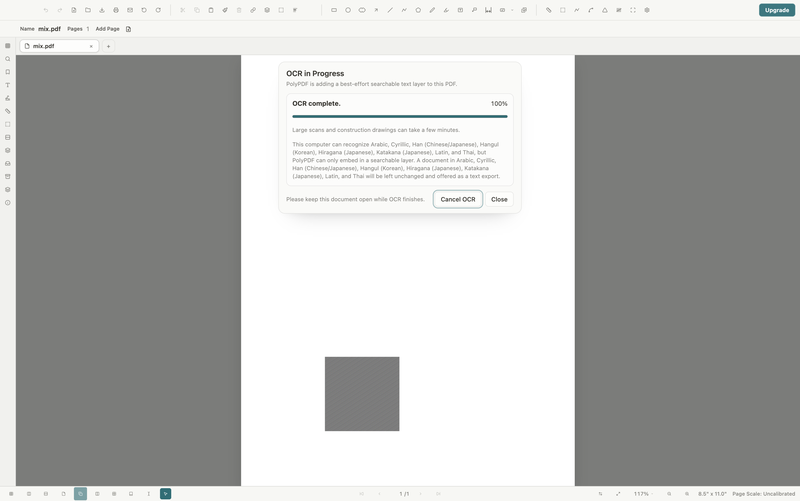
- Keep the dialog open to watch progress, or close it if you want the run to continue in the background. Choose Cancel OCR when you need to stop; a cancelled run discards its result.
- Wait for the completion message before judging search. Large scans and construction sets can take time.
- Save the recognized document under a distinct filename, close it, and reopen that saved file.
- Search several terms from different pages and copy short passages into plain text to inspect recognition quality.
Understand the language and script boundary
Recognition availability comes from the operating system and its installed language support, so the languages offered by one Mac or Windows computer may differ from another. PolyPDF’s embedded searchable layer in version 1.3.4 is limited to Latin, Greek, and Cyrillic scripts. The operating system may recognize text in additional scripts, but PolyPDF does not promise to embed those characters as a searchable layer in the PDF.
- Treat mixed-script title blocks as a special review case.
- Install and enable the needed OS language support before the project starts, then test with a representative page.
- Do not infer that a displayed language name guarantees equal accuracy across fonts, scan quality, rotations, or handwritten notes.
- When PolyPDF reports that recognized text cannot be embedded, use any offered text export as a review aid, not as proof that the PDF itself is searchable in that script.
Verify the terms that matter to the job
A general search test can pass while the identifiers you need still fail. Build a small verification set from the document: a sheet number, a room name, a material abbreviation, a dimension, and a note containing punctuation. Search each value exactly, then try a distinctive fragment. Inspect both true hits and obvious locations the search missed.
- Expect confusion between similar shapes such as O and 0, I and 1, S and 5, or decimal points and scan noise.
- Rotated notes, condensed fonts, faded diazo prints, skewed scans, and text crossing linework are harder inputs.
- Never copy an OCR-derived dimension, quantity, equipment tag, or specification value into downstream work without comparing it to the page image.
- Search results are a navigation aid. The visible drawing remains the source that must be reviewed.
Worked use case: find room notes in a scanned renovation set
Imagine a scanned renovation set where the phrase “existing to remain” appears throughout demolition notes. The source has no selectable text. Save a copy, run whole-document OCR, and reopen the recognized output. Search the full phrase, then the distinctive fragment “remain.” Review every hit on the page and manually visit two known notes that search did not return to estimate the miss pattern.
Use the results to navigate and place review markups, but do not turn the hit count into a demolition quantity. A missed phrase, broken word, or note embedded in poor linework can change the count. If a room number or dimension drives a scope decision, verify the characters against the scanned pixels and record the page reference with the markup.
What OCR does not establish
- OCR is best-effort recognition, not a transcription warranty or drawing-validation service.
- A searchable text layer does not make the PDF accessible. Reading order, headings, alternative text, form labels, and other accessibility structure require separate review.
- OCR does not remove confidential pixels. If a scan must be redacted, use an image-aware redaction workflow and verify the output.
- Recognition runs locally through platform capabilities, but OS language availability and results can differ between computers.
- A completed progress bar proves the run finished; it does not prove that every word was found or embedded correctly.
For consequential work, define the acceptable use before running OCR: navigation and discovery are reasonable; unreviewed extraction of dimensions, quantities, or compliance language is not.
Frequently asked questions
Does PolyPDF OCR run in the cloud?
PolyPDF uses local operating-system OCR rather than a PolyPDF cloud recognition service. Available languages can still depend on the OS and installed language packs.
Which scripts can PolyPDF embed as searchable PDF text?
In PolyPDF 1.3.4, the embedded searchable layer is limited to Latin, Greek, and Cyrillic scripts. Platform recognition may cover more scripts, but that does not mean PolyPDF can embed all of them in the PDF.
Can I choose a page range or OCR language?
Not in the version 1.3.4 OCR dialog. It starts a whole-document run and relies on platform recognition capabilities rather than exposing page-range and language controls.
Does OCR make a scanned PDF accessible?
No. Searchable text is one ingredient, but accessibility also depends on reading order, document structure, alternative text, form labeling, and human review.
Sources and further reading
- Apple Vision: Recognizing text in images
- Microsoft Learn: Optical character recognition
- PolyPDF 1.3.4 build 16 OCR verification — Verified with an owned scan fixture on August 18, 2026.
Test OCR on a representative scan
Download PolyPDF for macOS or Windows, run OCR on a non-sensitive copy, and test the exact sheet labels and notes your workflow needs to find.
Free with no trial timer. Hand-created measurements are capped at 3 per document.